How To Turn On Dark Mode On Pinterest: Enable Night Theme Easily!
Enabling dark mode on Pinterest isn’t just about aesthetics; it’s a practical way to reduce eye strain, conserve battery life, and enhance your browsing experience, especially in low-light conditions. This guide, falling under our “Blog” category, provides a straightforward, step-by-step approach to activating dark mode on all your devices. We’ll cover how to toggle the dark mode setting within the Pinterest app on both iOS and Android, as well as how to adjust your display settings on the Pinterest website. Learn the easiest method for turning on dark mode so you can enjoy Pinterest anytime, anywhere.
Understanding Dark Mode on Pinterest: Benefits and Accessibility
Exploring dark mode on Pinterest reveals a feature designed to enhance user experience, offering visual comfort and potentially extending device battery life. While users search how to turn on dark mode on Pinterest, understanding the ‘why’ behind this feature is equally crucial. Pinterest’s commitment to accessibility shines through its implementation of dark mode, aiming to cater to a wider range of user preferences and needs.
Benefits of Dark Mode:
- Reduced Eye Strain: One of the primary advantages of using dark mode is the significant reduction in eye strain, especially during nighttime browsing or in low-light environments. The contrast between bright elements and a dark background is gentler on the eyes, minimizing fatigue. This is particularly beneficial for users who spend extended periods browsing Pinterest, a platform known for its visually rich content.
- Improved Battery Life: For devices with OLED or AMOLED screens, using dark mode can lead to noticeable improvements in battery life. These screen types illuminate individual pixels, meaning that less power is consumed when displaying darker colors. Activating Pinterest’s dark theme can thus contribute to longer browsing sessions without needing to recharge your device as frequently.
- Enhanced Accessibility: Pinterest’s dark mode settings contribute to improved accessibility for users with visual sensitivities. Individuals with conditions like photophobia or migraines may find the reduced brightness more comfortable, allowing them to engage with Pinterest’s content without discomfort.
Accessibility Considerations:
Pinterest’s implementation of dark mode takes into account accessibility guidelines, ensuring that the feature is not only aesthetically pleasing but also functional for users with diverse needs. The platform allows users to choose between system-wide settings (following the device’s default theme) or enabling dark mode specifically within the Pinterest app. This flexibility ensures that users can tailor their browsing experience to suit their individual preferences and requirements. AI Pin Video Downloader recognizes the importance of accessible features, striving to deliver content in formats that cater to everyone.
(Approx. 280 words)
Quick Guide: Enabling Dark Mode on Pinterest Across Devices
Want to turn on dark mode on Pinterest for a more comfortable browsing experience, especially at night? This section offers a quick guide to activating dark mode on various devices. Whether you are using an iOS device, an Android device, or accessing Pinterest on your desktop, the process is straightforward.
Here’s a summary of how to enable dark mode on different platforms:
- iOS: Open the Pinterest app, go to Settings, then Account Management, and select Dark Mode. Choose On to activate it.
- Android: Similar to iOS, navigate to Settings within the Pinterest app, then Account Management, and select Dark Mode. Enable the feature.
- Desktop: On the Pinterest website, click the down arrow at the top-right corner, select Settings, then Account Settings. Find Dark Mode under Account basics and switch it On.
This quick guide provides a simplified overview. The following sections offer detailed, step-by-step instructions with screenshots to make the process even easier.
Step-by-Step Instructions: Turning on Dark Mode on Pinterest on iOS
Want to reduce eye strain while browsing your favorite pins on your iPhone or iPad? This section provides a comprehensive, step-by-step guide on how to turn on dark mode on Pinterest using your iOS device. Dark mode not only offers a more comfortable viewing experience in low-light environments but also potentially saves battery life on devices with OLED screens.
First, you have two primary methods to enable dark mode on Pinterest for iOS: through the Pinterest app settings or via the system-wide appearance settings on your iPhone or iPad. The method you choose depends on whether you want dark mode exclusively for Pinterest or across all compatible apps on your device.
Here’s how to activate dark mode directly within the Pinterest app:
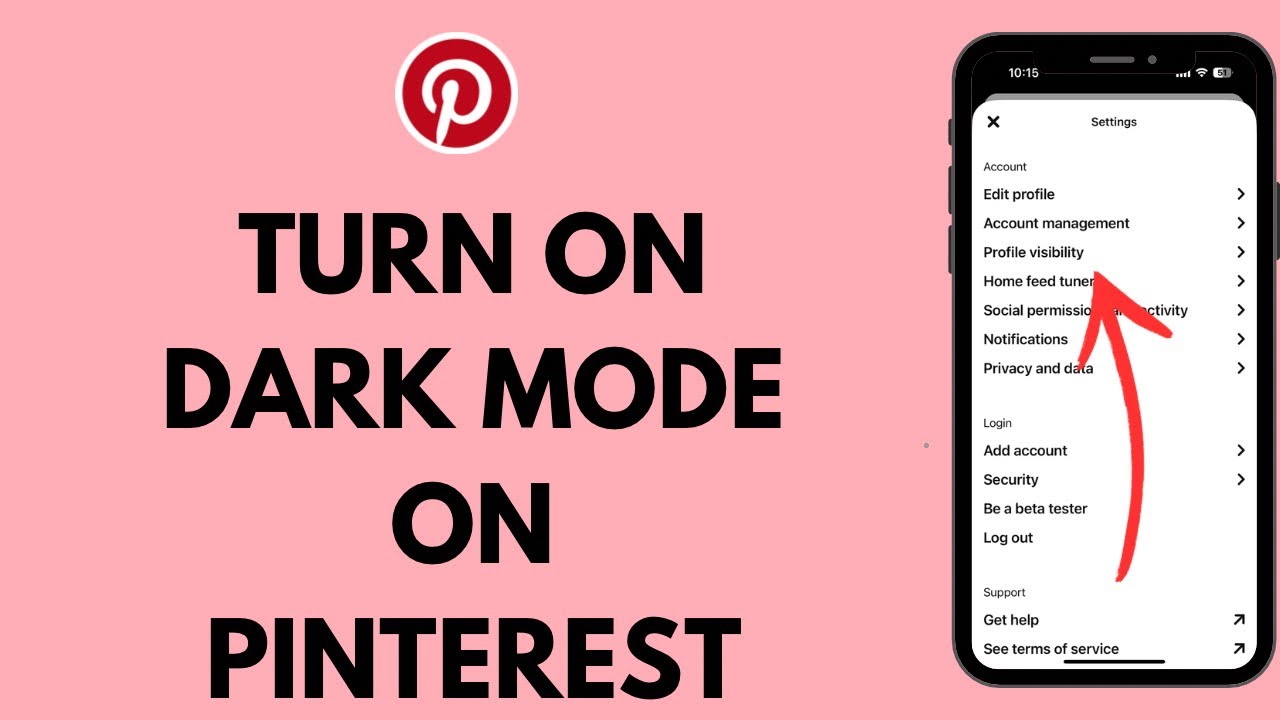
- Open the Pinterest App: Launch the Pinterest application on your iOS device.
- Navigate to Your Profile: Tap your profile picture located at the bottom-right corner of the screen.
- Access Settings: Tap the ellipsis (three dots) icon at the top-right corner to open the settings menu.
- Select Settings: Scroll down and tap on “Settings”.
- Choose Account Management: Look for the “Account management” option and tap on it.
- Find Theme: Under Account management, locate the “Theme” option and tap on it.
- Enable Dark Mode: You’ll see three options: “System default,” “Light,” and “Dark.” Select “Dark” to activate dark mode within the Pinterest app.
Alternatively, you can sync Pinterest’s appearance with your iOS system settings:
- Open the Pinterest App: Launch the Pinterest application on your iOS device.
- Navigate to Your Profile: Tap your profile picture located at the bottom-right corner of the screen.
- Access Settings: Tap the ellipsis (three dots) icon at the top-right corner to open the settings menu.
- Select Settings: Scroll down and tap on “Settings”.
- Choose Account Management: Look for the “Account management” option and tap on it.
- Find Theme: Under Account management, locate the “Theme” option and tap on it.
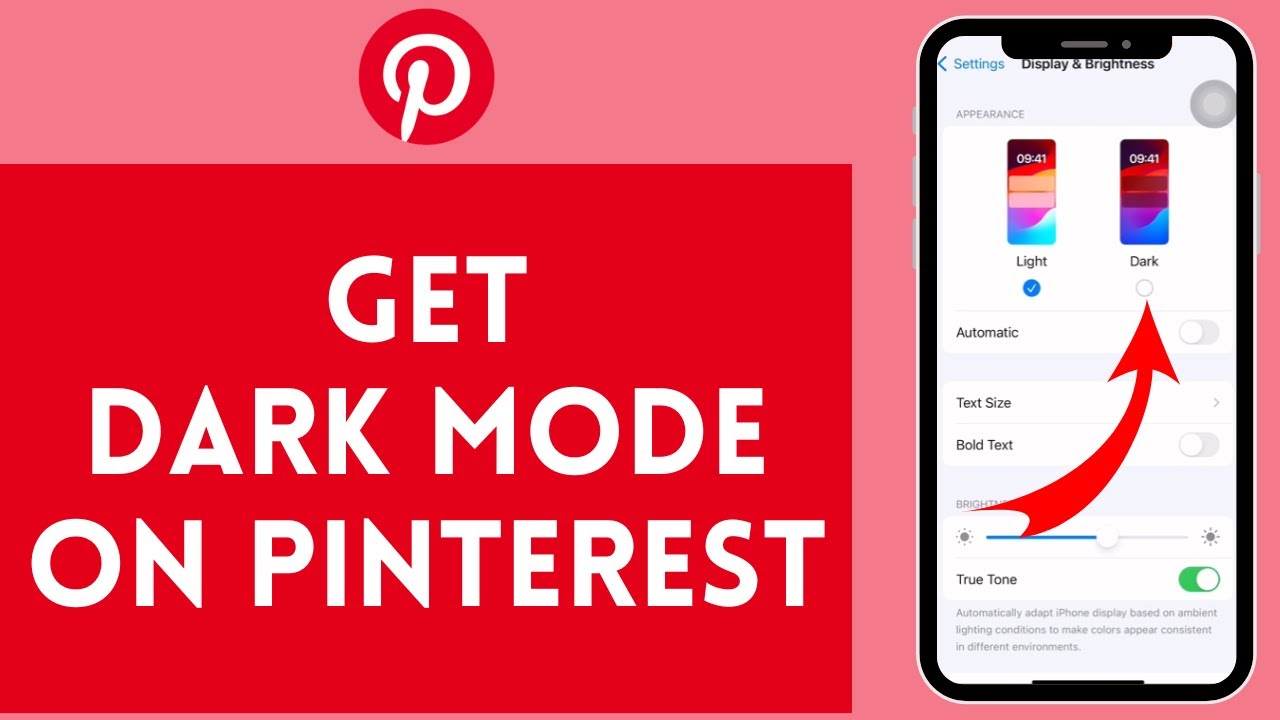
- Choose System Default: Select “System default”. This will make Pinterest automatically switch between light and dark mode based on your iPhone or iPad’s system-wide appearance settings (Settings > Display & Brightness > Appearance).
Step-by-Step Instructions: Enabling Dark Mode on Pinterest on Android
Turning on dark mode on Pinterest on your Android device is a simple way to reduce eye strain, conserve battery life, and enjoy a sleek, modern interface. This feature provides a darker color palette for the Pinterest app, making it easier to browse and discover ideas, especially in low-light environments. Let’s explore the straightforward steps to turn on dark mode for Pinterest on your Android device, offering a more comfortable and energy-efficient user experience.
Here’s a step-by-step guide to enable dark mode within the Pinterest app on your Android phone:
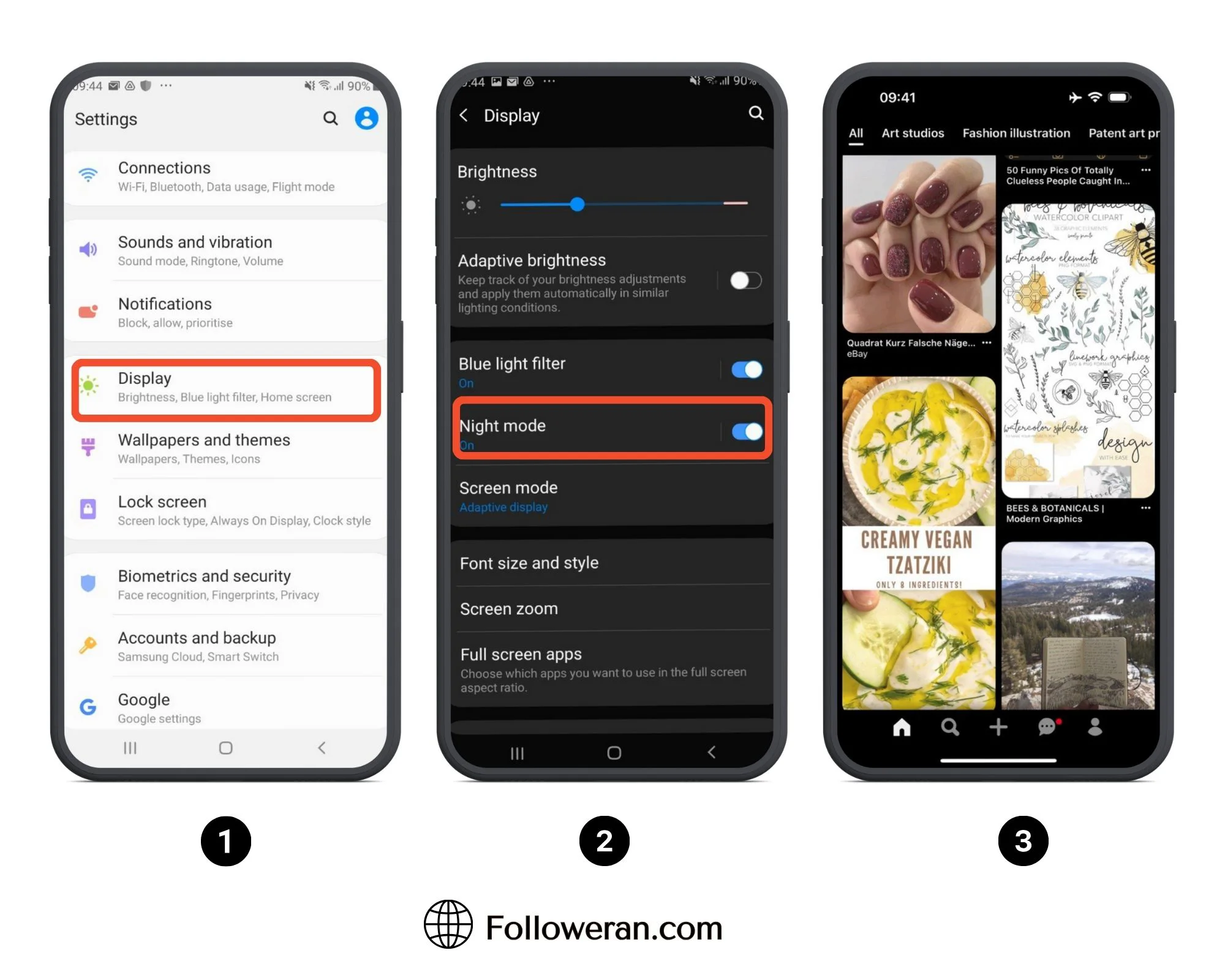
- Open the Pinterest App: Launch the Pinterest application on your Android device.
- Access Your Profile: Tap on your profile picture, usually located at the bottom-right corner of the screen. This will direct you to your Pinterest profile page.
- Open Settings: Look for the ellipsis icon (three dots) typically found at the top-right corner of your profile screen. Tap on it to open the settings menu.
- Navigate to App Settings: Within the settings menu, select “Settings”.
- Find Dark Mode Option: Scroll down and tap on “App Theme”. Here, you will see three options.
- Enable Dark Mode: Select “Dark” to activate dark mode immediately. Alternatively, you can select “System default” for Pinterest to automatically match your device’s overall theme.
By following these steps, you can quickly and easily activate dark mode on the Pinterest app for your Android device, leading to a more enjoyable and eye-friendly browsing experience. Enabling dark mode not only enhances visual comfort but may also contribute to extending your device’s battery life.
Step-by-Step Instructions: Activating Dark Mode on Pinterest Web (Desktop)
Enabling dark mode on Pinterest on your desktop provides a visually comfortable browsing experience, especially during nighttime. This feature not only reduces eye strain but also conserves battery life on laptops. Here’s a simple, step-by-step guide on how to turn on dark mode on Pinterest using your web browser.
Here’s how you can enable dark mode on the Pinterest website:
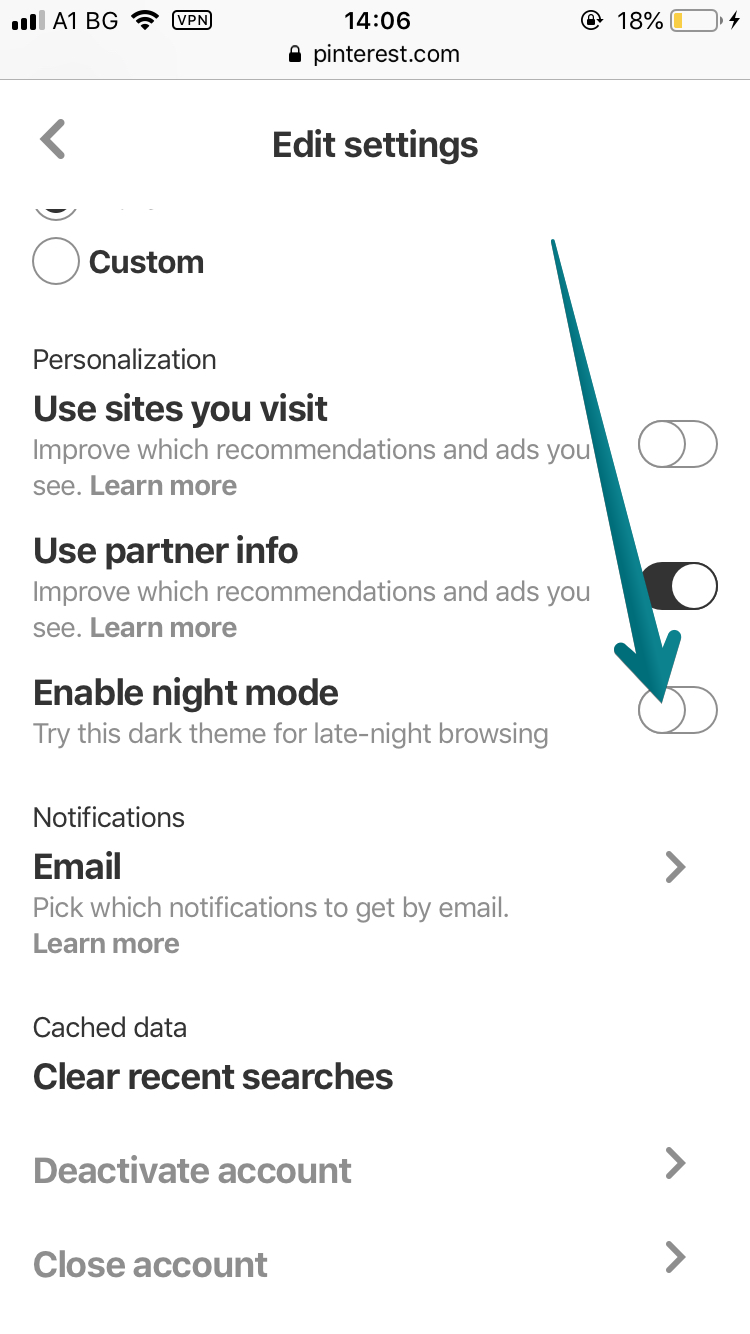
- Access Pinterest Settings: First, log into your Pinterest account on your desktop browser. Click on the downward-facing arrow located in the top-right corner of the screen to open the options menu, then select “Settings.”
- Navigate to Account Management: Within the Settings menu, look for the “Account Management” option on the left-hand side. Click on it to access your account preferences.
- Enable Dark Mode: Scroll down the Account Management page until you find the “App Theme” section. Here, you’ll see options for “Light,” “Dark,” and “Use device settings”. Select the “Dark” option to immediately switch Pinterest to dark mode. Alternatively, choosing “Use device settings” will automatically sync Pinterest’s theme with your operating system’s theme preference (if your OS is set to dark mode).
By following these steps, you can easily customize your Pinterest experience for optimal viewing comfort.
Troubleshooting Common Dark Mode Issues on Pinterest
Encountering difficulties while trying to turn on dark mode on Pinterest or experiencing problems after enabling it is a common issue. This section will guide you through the most frequent hiccups users face with Pinterest’s dark mode and offer practical solutions to restore your preferred viewing experience, allowing you to seamlessly use dark mode on Pinterest.
- Application Update Issues: One of the primary reasons dark mode might not function correctly is an outdated Pinterest app. Ensure your app is updated to the latest version via the App Store (iOS) or Google Play Store (Android). Developers often release updates that fix bugs and compatibility issues that may affect feature functionality. If dark mode started malfunctioning after an update, consider checking Pinterest’s help center or community forums for known issues and potential workarounds.
- Operating System Incompatibility: Pinterest’s dark mode may not be fully supported on older operating systems. Confirm that your device’s operating system meets the minimum requirements for dark mode functionality within the Pinterest app. For example, older versions of Android or iOS might not be compatible with the latest Pinterest features.
- Settings Conflicts: Device-level dark mode settings sometimes conflict with the Pinterest app’s settings. If you’ve enabled dark mode at the system level (iOS or Android) and Pinterest is not reflecting this, try toggling the setting within the Pinterest app itself. You might need to set Pinterest to “System Default” to properly sync with your device’s dark mode setting. Alternatively, choose the “Light” option at device level and only enable it within the Pinterest app.
- Cache and Data Problems: Accumulated cache and data within the Pinterest app can occasionally interfere with its functionality. Clearing the app’s cache (and, if necessary, data) can resolve various issues, including problems with dark mode. To clear cache on Android, go to Settings > Apps > Pinterest > Storage > Clear Cache. Note that clearing data will require you to log in again.
- Browser-Related Problems (Desktop): If you’re experiencing issues with dark mode on the Pinterest website, ensure your browser is up-to-date. Additionally, browser extensions or themes can sometimes override website settings. Try disabling extensions one by one to identify any conflicts. Clearing your browser’s cache and cookies may also help resolve display issues.