How To Unpin On Pinterest: Easily Remove Pins From Your Boards
Unpinning content on Pinterest is essential for maintaining a curated and relevant profile, but it can be confusing. This guide, under our Blog category, provides a clear, step-by-step process to help you declutter your boards and refine your online presence. We’ll walk you through how to remove individual Pins, delete entire sections, and even unpin in bulk to efficiently manage your Pinterest content. In this article, you’ll discover practical methods for organizing your boards and ensuring your profile reflects your current interests and goals in 2025. We’ll also cover best practices for managing saved Pins and board visibility, empowering you to take full control of your Pinterest experience.
Understanding Pinning and Unpinning on Pinterest: A Quick Overview
Pinning and unpinning are fundamental actions on Pinterest, playing a vital role in how users discover, save, and organize content. Understanding these actions is crucial for effectively using the platform, whether you’re a casual user seeking inspiration or a business aiming to drive traffic and sales. Consider pinning as saving items to your digital mood board, while unpinning acts as decluttering your boards by removing Pins that are no longer relevant or interesting.
- Pinning: This is the core function of Pinterest, where users save images or videos (called “Pins”) they find on the platform or across the web to their various boards. These boards act as themed collections, allowing users to categorize and organize their interests, ideas, and inspirations. For example, a user might pin recipes to a “Dinner Ideas” board, fashion inspiration to a “Style Goals” board, or home decor ideas to a “Dream Home” board. Each Pin links back to the original source website, driving traffic and potential customers to businesses.
- Unpinning: This refers to the act of removing a Pin from one of your boards. This action is permanent for your boards only. The original Pin remains on Pinterest, and other users can still pin it to their own boards. Unpinning is useful for decluttering boards, removing outdated content, or refining the overall aesthetic and focus of a board. You might unpin a recipe that didn’t turn out well, a fashion trend that’s no longer in style, or a home decor idea that you’ve changed your mind about.
Ultimately, mastering the art of pinning and unpinning allows users to curate a personalized and engaging experience on Pinterest, ensuring their boards remain relevant, inspiring, and reflective of their evolving interests and needs.
Step-by-Step Guide: How to Unpin on Pinterest on Different Devices
Learning how to unpin on Pinterest is a straightforward process, essential for maintaining a curated and relevant profile. Whether you’re using a desktop, an iOS device, or an Android device, the steps are generally similar, allowing you to easily remove Pins from your boards. This section provides a comprehensive, device-specific guide to help you effortlessly manage your saved Pins.
To unpin on Pinterest, the process varies slightly depending on the device you’re using, but the core steps remain consistent: navigating to the Pin, accessing the editing options, and selecting the unpin option. Understanding these device-specific nuances allows you to efficiently remove unwanted Pins and maintain an organized Pinterest profile. Let’s dive into the step-by-step instructions for each platform:
On a Desktop:
- Log in to your Pinterest account on your desktop computer.
- Navigate to the specific board where the Pin you want to remove is located.
- Hover over the Pin. You’ll see a red “Save” button.
- Click the “Save” button. This will open a window showing the board where the Pin is saved.
- Click the board’s name. This will open the Pin.
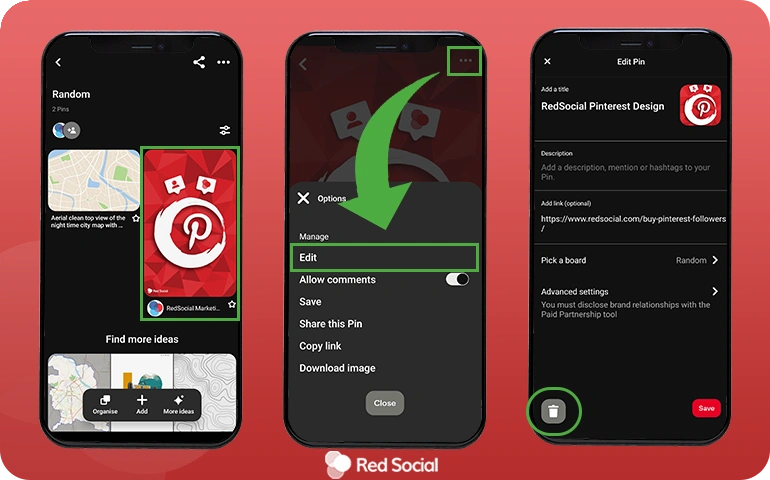
- Click the three dots icon (•••) located at the top-right corner of the Pin.
- Select “Edit Pin“.
- Click “Delete” at the bottom left of the “Edit your pin” screen.
- Confirm by clicking “Delete” again. The Pin is now removed from your board.
On an iOS Device (iPhone/iPad):
- Open the Pinterest app on your iOS device.
- Tap the profile icon at the bottom-right corner.
- Select the board containing the Pin you want to unpin.
- Tap on the Pin to open it.
- Tap the three dots icon (•••) located at the bottom-right corner of the Pin.
- Select “Edit Pin“.
- Tap “Delete” at the bottom of the “Edit your pin” screen.
- Confirm by tapping “Delete” again. The Pin will be unpinned from your board.
On an Android Device:
- Open the Pinterest app on your Android device.
- Tap the profile icon at the bottom-right corner.
- Select the board where the Pin you want to remove is located.
- Tap on the Pin to open it.
- Tap the three dots icon (•••) located at the bottom-right corner of the Pin.
- Select “Edit Pin“.
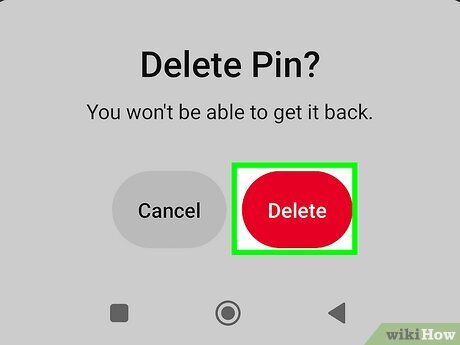
- Tap “Delete” at the bottom of the “Edit your pin” screen.
- Confirm by tapping “Delete” again to remove the Pin.
By following these simple steps, you can easily unpin content from your Pinterest boards, ensuring your profile remains organized and reflective of your current interests. These device-specific instructions guarantee a smooth and efficient experience across all your devices.
(Approx. 280 words)
Why Can’t I Unpin My Pin? Troubleshooting Common Unpinning Issues
Encountering issues while trying to unpin on Pinterest can be frustrating, but understanding the common causes can help you quickly resolve the problem. Several factors might be at play when you find yourself unable to remove a Pin from your board. These range from simple glitches to more complex permission issues. By identifying the root cause, you can efficiently troubleshoot and maintain your desired Pinterest board organization.
Here are several potential reasons why you might be struggling to unpin your Pin, and how to address them:
- Connectivity Problems: A weak or unstable internet connection is a common culprit. Pinterest requires a stable connection to process actions like unpinning. Solution: Check your Wi-Fi signal or try switching to mobile data to see if the issue resolves. You can also try restarting your router or modem.
- Pinterest Glitches: Like any platform, Pinterest can experience temporary glitches or server issues that prevent certain actions. Solution: Wait a few minutes and try again. Clearing your browser’s cache and cookies or restarting the Pinterest app can also help. Checking Pinterest’s status page or social media channels might reveal widespread outages.
- Browser or App Issues: Outdated browsers or app versions can sometimes cause compatibility problems, leading to unpinning failures. Solution: Ensure you’re using the latest version of your web browser or the Pinterest app. Updating usually resolves bugs that might be hindering functionality.
- Permissions and Board Ownership: If you are trying to unpin a Pin from a group board where you are not a collaborator or the owner, your permissions may be restricted. Solution: Only board owners and collaborators with editing privileges can unpin Pins on group boards. Confirm your role within the board and request appropriate permissions if needed.
- Pin Ownership: You can only unpin Pins that you have saved to a board. You cannot remove Pins added by others to a board you own. Solution: If you want to remove someone else’s Pin from your board, you’ll need to contact them directly or, if it’s a group board you manage, remove them from the board if their Pins are consistently irrelevant.
- Account Issues: In rare cases, there might be an issue with your Pinterest account itself. Solution: Try logging out and logging back in. If the problem persists, contact Pinterest support for assistance. They can investigate potential account-specific errors.
The Difference Between Unpinning and Deleting a Pin: Which One Should You Choose?
Understanding the difference between unpinning and deleting a Pin on Pinterest is crucial for effectively managing your boards and online presence. While both actions remove a Pin from a specific location, they have distinct consequences regarding the Pin’s overall visibility and your interactions with it. This section clarifies these differences and guides you in choosing the appropriate action.
When you unpin a Pin, you’re essentially removing it from one of your boards. The unpinned Pin still exists on Pinterest; it’s just no longer associated with that particular board. Think of it as taking a physical photograph off your bulletin board but keeping the photograph itself in your photo album. Other users can still find the Pin through search, or if it was originally pinned from a website, through that website. Unpinning is a good option when you want to declutter a board or the Pin no longer aligns with the board’s theme, but you don’t want to completely eliminate the Pin.
On the other hand, deleting a Pin permanently removes it from Pinterest. This action is irreversible. It’s like throwing away that photograph altogether. If you are the original pinner of the Pin – meaning you uploaded it directly or saved it from a website yourself – deleting it will remove it from the platform entirely. However, deleting a Pin you saved that someone else originally created only removes it from your saved Pins. The original Pin remains visible on Pinterest. Consider deleting a Pin if it’s outdated, irrelevant, violates Pinterest’s community guidelines, or you simply no longer want it to exist on the platform.
Therefore, the key consideration is whether you want to remove the Pin from just your board (unpinning) or from Pinterest altogether (deleting, if you are the original pinner). Using AI Pin Video Downloader can help you identify the original source of a Pin, aiding in the decision-making process.
Organizing Your Pinterest Boards: Alternatives to Unpinning for Better Curation
Tired of constantly unpinning content to keep your Pinterest boards fresh and relevant? Discover effective alternatives to unpinning that will help you maintain well-organized and engaging boards, moving beyond simply how to unpin on Pinterest. Instead of removing pins, consider strategies like creating secret boards, utilizing sections within boards, and archiving outdated content to optimize your Pinterest presence.
Instead of directly removing pins, Pinterest provides a variety of features to help you curate your boards without losing valuable content or engagement metrics. These methods not only keep your boards looking current but also allow you to maintain a historical record of your pinning activity. Board sections and secret boards are two powerful tools that let you organize content discreetly.
Here are several strategies you can implement to maintain a clean and engaging Pinterest profile:
- Creating Secret Boards: Use secret boards as a repository for pins you no longer want to feature prominently but aren’t ready to delete entirely. This is perfect for seasonal content or ideas you might revisit later.
- Utilizing Board Sections: Divide your existing boards into sections to group similar pins together, making it easier for users to find what they’re looking for without overwhelming them with a jumble of unrelated content. For example, a “Home Decor” board could be divided into sections like “Living Room Ideas,” “Bedroom Inspiration,” and “Kitchen Design.”
- Archiving Outdated Content: While Pinterest doesn’t have a direct “archive” feature, you can move pins to secret boards or create a dedicated “Archived Pins” board to store older content that’s no longer relevant to your current focus.
- Moving Pins to More Relevant Boards: If a pin feels out of place, consider moving it to a different board that’s a better fit. This helps ensure that each board has a clear theme and purpose.
- Refreshing Board Covers: Update your board covers regularly to reflect the current content and attract new followers. A visually appealing board cover can make a big difference in how users perceive your profile.
By implementing these strategies, you can effectively organize your Pinterest boards, enhance user experience, and avoid the need to constantly unpin content. This not only saves time but also ensures that your profile remains a valuable resource for your followers.

Unpinning Etiquette: What to Consider Before Removing Someone Else’s Pin
While how to unpin on Pinterest primarily concerns managing your own pins, understanding unpinning etiquette becomes crucial when dealing with pins that originate from other users. Removing someone else’s pin from your board can have implications, so it’s essential to consider the context and potential impact before taking action.
One key aspect to consider is the source of the Pin. If the Pin is directly from a reputable website or creator, removing it might not be a major issue. However, if the Pin is a re-pin from another user’s board, it’s wise to pause and reflect. The other user might have curated that pin carefully as part of their collection, and removing it could inadvertently affect their experience on Pinterest.
Before you unpin, consider these points:
- Relevance: Is the Pin no longer relevant to your board’s theme or your interests? Over time, your tastes evolve, and a Pin that once fit perfectly might now seem out of place.
- Accuracy: Does the Pin contain misleading or inaccurate information? If a Pin promotes false claims or outdated advice, removing it protects your followers from misinformation.
- Quality: Is the Pin low-quality or visually unappealing? Pins with blurry images or poor design can detract from the overall aesthetic of your board.
- Copyright: Does the Pin infringe on someone’s copyright? Removing pins that violate copyright laws helps maintain ethical standards on Pinterest.
In many cases, organizing your boards is a better alternative to indiscriminately unpinning other people’s content. You could create a new board with a more specific theme and move the pin there. Alternatively, consider archiving boards that no longer reflect your current interests. This way, you avoid negatively impacting other users while still maintaining a curated Pinterest experience. Ultimately, thoughtful consideration helps ensure a respectful and positive Pinterest environment for everyone.

Beyond Unpinning: Managing Your Pinterest Activity for Optimal Engagement
Moving beyond simply how to unpin on Pinterest, let’s explore how to proactively manage your Pinterest activity to maximize user engagement and achieve your goals. Strategic Pinterest management goes beyond basic actions; it’s about cultivating a vibrant and relevant presence. Instead of only reacting by unpinning content, learn to curate your boards effectively and engage actively with the Pinterest community.
To truly leverage Pinterest, focus on activities that drive engagement:
- Regularly analyze your Pinterest analytics: Understanding which Pins and boards perform best allows you to refine your strategy. Pay attention to metrics like impressions, saves, and click-through rates. Pinterest Analytics offers invaluable insights into your audience’s preferences, guiding your future content curation.
- Engage with other users: Commenting on relevant Pins, following accounts in your niche, and participating in group boards can significantly increase your visibility and build relationships.
- Schedule your Pins strategically: Consistency is key on Pinterest. Use a scheduling tool like Tailwind or Buffer to ensure a steady stream of fresh content throughout the day, even when you’re not actively on the platform.
- Optimize your Pins for search: Use relevant keywords in your Pin descriptions and board titles to improve search visibility. Think about what your target audience is searching for and tailor your content accordingly.
- Create visually appealing content: High-quality images and videos are essential for attracting attention on Pinterest. Experiment with different formats and styles to see what resonates best with your audience.
- Promote your Pinterest profile: Share your Pinterest profile on other social media platforms, your website, and your email signature to drive traffic and increase your follower count.
By focusing on these proactive Pinterest management strategies, you can move beyond unpinning as a reactive measure and build a thriving Pinterest presence that drives meaningful engagement and achieves your business objectives. AI Pin Video Downloader can help you create high-quality video content suitable for pinning, driving engagement further.