Why Is Pinterest Not Working? Troubleshooting Login, Images & Server Issues
Is your Pinterest suddenly not working, leaving you unable to share your ideas or grow your business? In 2025, this is a frustrating reality for many users, and understanding the root cause is crucial. This Blog post dives deep into the common reasons behind Pinterest issues, exploring everything from account problems and technical glitches to network connectivity and app malfunctions. We’ll also cover troubleshooting steps for resolving login errors, fixing image uploading problems, and addressing feed loading issues, ultimately helping you get back to pinning and achieving your goals on Pinterest.
Troubleshooting “Pinterest Not Working”: Quick Fixes to Get You Back Pining
Experiencing “Pinterest Not Working” issues can be frustrating when you’re eager to discover new ideas and inspiration. But don’t worry, several quick fixes can often resolve these problems and get you back to pining in no time. This section outlines practical troubleshooting steps to address common causes of Pinterest malfunctions, helping you quickly identify and resolve the issue.
First, ensure a stable internet connection, as a weak or interrupted connection is a frequent culprit behind Pinterest failing to load properly. After validating your internet connection, try clearing the app’s cache and data on mobile devices; on desktop browsers, the equivalent step is to clear cache and cookies. These actions remove temporary files that may be causing conflicts or errors. Sometimes, an outdated version of the Pinterest App can also cause problems; make sure you have the latest version installed from your app store.
If the issue persists, try these additional steps:
- Restart Your Device: A simple restart can resolve many temporary glitches that might be affecting Pinterest’s performance.
- Check for Pinterest Server Issues: Occasionally, Pinterest itself may be experiencing server problems. You can check their official status page or social media channels for updates.
- Reinstall the Pinterest App: Removing and reinstalling the app can resolve more persistent software issues.
- Verify Account Status: Ensure your account is active and hasn’t been suspended or deactivated.
Common “Pinterest Not Working” Issues & Their Root Causes
Experiencing “Pinterest not working” is a frustrating issue for avid users, and understanding the underlying root causes is the first step to finding a solution. Many factors can contribute to these disruptions, ranging from simple account glitches to complex server-side problems or compatibility issues. Identifying whether the problem stems from your account, your device, or Pinterest’s infrastructure will guide you toward the appropriate troubleshooting steps.
One of the primary categories of problems arises from account-related issues. For example, Pinterest may temporarily suspend or restrict accounts due to suspected policy violations, such as spamming or posting inappropriate content. Furthermore, problems with email verification or password resets can lock users out of their accounts, rendering the platform unusable. Finally, issues related to linked accounts or third-party app integrations can occasionally trigger unexpected errors, leading to the impression that Pinterest isn’t functioning correctly.
App/Browser compatibility is another significant factor. Outdated versions of the Pinterest app or web browser might not be fully compatible with the platform’s latest features and security protocols. Similarly, conflicts with browser extensions or incompatible operating systems can cause unexpected crashes, rendering problems, or connectivity issues. For instance, users running older versions of Android or iOS may find that the Pinterest app no longer functions optimally, while those using outdated browsers like Internet Explorer could encounter significant rendering problems.
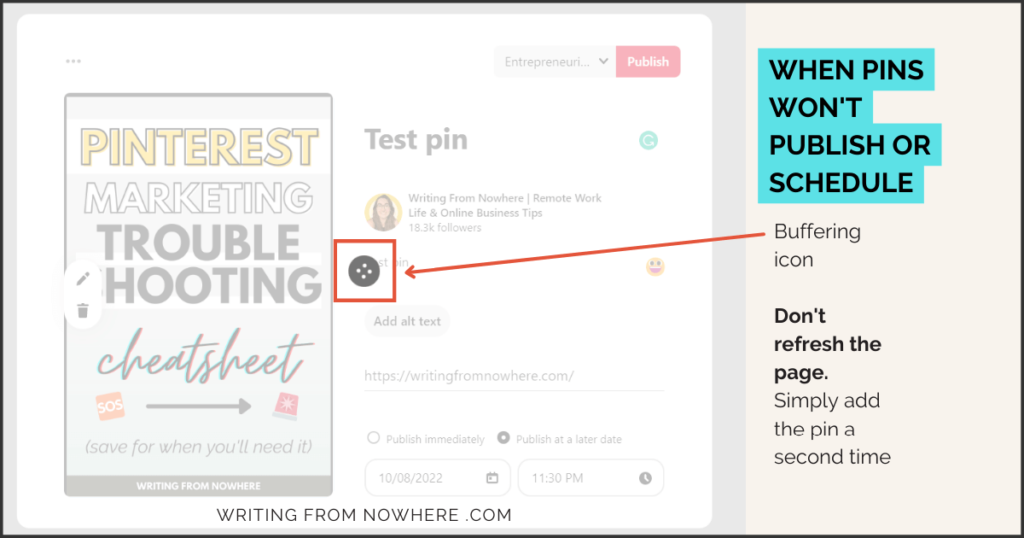
Finally, server and network issues on either the user’s end or Pinterest’s side can lead to interruptions. A weak or unstable internet connection can prevent the app or website from loading content correctly, resulting in error messages or blank screens. In addition, Pinterest’s servers may occasionally experience outages or maintenance periods, making the platform temporarily unavailable to all users. According to Downdetector, Pinterest often sees spikes in reported problems during peak usage hours, suggesting that server load can sometimes contribute to performance issues.
Advanced Troubleshooting: When Basic Fixes Don’t Work
When basic troubleshooting steps fail to resolve the issue of why is Pinterest not working, it’s time to delve into advanced troubleshooting techniques to pinpoint the underlying cause and restore functionality. Sometimes the simple fixes, like clearing cache or restarting your device, just aren’t enough to get you back to browsing and saving pins.
If you’ve exhausted the common solutions for Pinterest not working, such as clearing your cache or updating the app, these more in-depth strategies can often identify less obvious culprits. These could range from permission issues within your device settings to conflicts with browser extensions or VPN configurations that interfere with Pinterest’s connection. Let’s explore these advanced steps.
Checking Permissions and Settings
Incorrect permissions and settings can often be the reason why Pinterest is not working. Ensure that the Pinterest app (on mobile) or the browser (on desktop) has the necessary permissions to access the internet, storage, and other relevant features of your device.
- Mobile Apps: Go to your device’s settings, find the Pinterest app, and review its permissions. Make sure it has access to data and background app refresh to allow proper loading of feeds and images. Insufficient permissions can manifest as an inability to load content or save pins.
- Browser Settings: For desktop users, check your browser’s security settings to ensure that Pinterest isn’t being blocked by overly restrictive privacy settings. Also, ensure that Javascript is enabled, as Pinterest relies heavily on it to function.
Addressing VPN Conflicts
A VPN (Virtual Private Network) can sometimes interfere with Pinterest’s ability to connect to its servers, especially if the VPN server is located in a region where Pinterest access is restricted or experiencing issues. Temporarily disabling your VPN to see if that resolves the problem will help you determine if VPN is the problem why Pinterest is not working.
- Diagnosis: Turn off your VPN entirely and check if Pinterest starts working immediately.
- Solution: If disabling the VPN resolves the issue, consider changing your VPN server location or contacting your VPN provider to inquire about potential conflicts with Pinterest. You could also try whitelisting Pinterest in your VPN settings, if that option is available.
Investigating Browser Extensions
Problematic browser extensions can negatively impact the way Pinterest functions on your computer. These extensions may interfere with the site’s code, causing errors, slow loading times, or complete malfunctions; browser extensions might the problem about why is Pinterest not working.
- Troubleshooting: To identify a problematic extension, disable them one by one, testing Pinterest after each deactivation.
- Resolution: If you find a specific extension is causing issues, either remove it or look for an alternative extension that offers similar functionality without the conflict. Browser extensions like ad blockers and privacy protectors are often the cause, so start by temporarily disabling those.
Contacting Pinterest Support
If none of the above steps resolve the problem of Pinterest not working, the final resort is contacting Pinterest support directly. Explain the issue you’re experiencing and the troubleshooting steps you’ve already taken.
- Providing Details: When contacting support, be as specific as possible. Include your device type, operating system, browser version, and any error messages you’re seeing.
- Following Instructions: Pinterest support may provide you with additional troubleshooting steps or investigate the issue further on their end. Be patient and follow their instructions carefully.
Understanding Pinterest System Requirements for Optimal Performance
Ensuring a smooth Pinterest experience requires understanding the platform’s underlying system requirements. Just as a house needs a strong foundation, Pinterest needs adequate device capabilities, sufficient bandwidth, and compatible software to function optimally, preventing issues that lead to the frustration of “why is Pinterest not working.” This section will break down these requirements, providing insights into device compatibility, bandwidth needs, and software dependencies so you can optimize your Pinterest experience.
Device Compatibility
Pinterest is designed to be accessible across a range of devices, but older models or those with limited resources may struggle. The device compatibility hinges on the operating system (OS) and hardware specifications. For mobile devices, ensure your Android or iOS version meets the minimum requirements outlined in the Pinterest app description on the App Store or Google Play Store. On desktop, Pinterest primarily relies on web browsers; hence, compatibility is more about the browser than the OS itself. Regularly updating your OS and browser is crucial for maintaining compatibility.
Bandwidth Requirements
Visual platforms like Pinterest are bandwidth-intensive due to the high volume of images and videos. Insufficient bandwidth can lead to slow loading times, buffering, and even the dreaded “Pinterest not working” message. While Pinterest doesn’t explicitly state minimum bandwidth requirements, a stable internet connection with a download speed of at least 5 Mbps is generally recommended for a reasonably smooth experience. Consider upgrading your internet plan or optimizing your Wi-Fi setup if you frequently encounter loading issues. Video Pins, in particular, demand higher bandwidth; therefore, adjusting video playback settings within Pinterest can help conserve data and improve performance on slower connections.
Software Dependencies
Pinterest relies on compatible software to function correctly, primarily focusing on web browsers for desktop users and the Pinterest app for mobile users. Software dependencies can manifest in several ways: outdated browsers that lack support for modern web technologies, conflicting browser extensions that interfere with Pinterest’s functionality, or even outdated versions of the Pinterest app itself. Keeping your browser and app updated is paramount to avoid compatibility issues. Regularly check for updates and install them promptly. Furthermore, ensure that any browser extensions or plugins you have installed are compatible with Pinterest and are not causing conflicts.
Optimizing Your Device for a Smoother Pinterest Experience
Is Pinterest running slowly, or is it frequently crashing? Optimizing your device is key to enjoying a smoother Pinterest experience and resolving issues where “Pinterest not working” becomes a frustration. Beyond quick fixes, optimizing your device ensures that Pinterest runs efficiently, reducing lag and improving overall performance. This involves addressing background processes, browser configurations, and storage limitations that might be hindering Pinterest’s functionality.
Closing Unnecessary Applications
One of the simplest yet most effective ways to improve Pinterest’s performance is by closing unnecessary applications running in the background. These applications consume system resources, such as memory and processing power, which can slow down Pinterest and other apps. For example, if you have multiple browser tabs open, music streaming services running, or large files downloading, closing them can free up valuable resources and significantly improve Pinterest’s responsiveness. Regularly assessing and closing unused applications is a good practice for maintaining overall device performance, especially when using resource-intensive applications like Pinterest.
Optimizing Browser Settings
Optimizing browser settings can significantly impact Pinterest’s performance, especially on desktop. Outdated browsers or incorrect configurations can lead to slow loading times and display issues. Regularly updating your browser to the latest version is crucial, as updates often include performance enhancements and bug fixes. Additionally, disabling unnecessary browser extensions can reduce the load on your browser and improve Pinterest’s speed. Adjusting settings like hardware acceleration can also contribute to a smoother Pinterest experience. For instance, enabling hardware acceleration allows the browser to utilize your device’s graphics card for rendering web pages, potentially leading to faster and more fluid scrolling.
Managing Storage Space
Insufficient storage space can also contribute to “Pinterest not working” effectively. When your device’s storage is nearing its limit, performance can degrade significantly, affecting Pinterest’s ability to load images and videos quickly. Regularly clearing out unnecessary files, such as old downloads, unused applications, and large media files, can free up valuable storage space and improve your device’s overall performance. Consider backing up important files to the cloud or an external drive to further declutter your device. By ensuring that your device has adequate storage space, you can optimize Pinterest’s performance and prevent issues related to slow loading times or crashes.

Pinterest Alternatives and What Makes Them Tick (If Pinterest Stays Down)
Experiencing issues with Pinterest can be frustrating, especially when you’re in the middle of planning a project or seeking inspiration. Fortunately, several Pinterest alternatives exist, each offering a unique take on visual discovery and content sharing. Understanding what makes each platform tick can help you find the perfect substitute if Pinterest is temporarily unavailable or doesn’t quite meet your needs.
When Pinterest not working, exploring other visual discovery platforms becomes essential for maintaining your creative workflow. Here are a few prominent alternatives to Pinterest:
- Instagram: Primarily known for its photo and video sharing capabilities, Instagram also allows users to save posts into collections, akin to Pinterest boards. Instagram’s strength lies in its active community and emphasis on real-time content.
- We Heart It: This platform focuses on inspiring and aesthetic imagery, catering to a younger demographic. We Heart It allows users to collect and share images, GIFs, and videos, emphasizing positivity and self-expression.
- Tumblr: A microblogging platform, Tumblr offers a diverse range of content, including images, text posts, videos, and audio. Users can follow blogs, reblog content, and create their own unique feeds. Its flexibility and diverse community set it apart.
- Dribbble: Specifically tailored for designers and creatives, Dribbble showcases design work, illustrations, and other visual projects. This platform serves as an excellent source of inspiration and a networking tool for creative professionals.
Each of these visual discovery platforms boasts its own set of features and strengths. Instagram excels in real-time engagement, while We Heart It prioritizes aesthetic inspiration. Tumblr’s flexibility caters to diverse content types, and Dribbble focuses specifically on design-related content. By exploring these Pinterest alternatives, you can find a platform that aligns with your specific needs and interests when why is pinterest not working is an issue.
These platforms provide unique features. We Heart It offers secret collections for personal inspiration boards. Dribbble has a pro membership with advanced search filters.
These options ensure you always have access to a world of visual inspiration, even when Pinterest is temporarily out of commission.