How To Save Pinterest Photos To Camera Roll: Easy Download Guide
Saving Pinterest photos directly to your camera roll is essential for quick access and sharing in 2025. This guide dives deep into how to download images from Pinterest on both mobile (iOS and Android) and desktop devices. We’ll cover methods for direct downloads, using third-party apps, and even extracting images from Pinterest videos. Unlock the secrets to effortlessly save Pinterest pins and manage your visual inspiration with our comprehensive download guide, perfect for any Blog enthusiast.
Using the Pinterest App to Save Photos: A Step-by-Step Guide
Want to save Pinterest photos to your camera roll? This comprehensive guide provides a simple, step-by-step process for efficiently using the Pinterest app to save images. Whether you are looking to build mood boards, gather inspiration, or simply archive interesting visuals, understanding how to properly utilize the save function within the Pinterest app is essential.
To effectively save Pinterest photos directly to your device’s gallery, follow these easy steps:
- Open the Pinterest App: Launch the Pinterest app on your smartphone or tablet. Make sure you are logged into your account.
- Find the Desired Pin: Browse through your feed, search for specific topics, or navigate to a board where the photo is located.
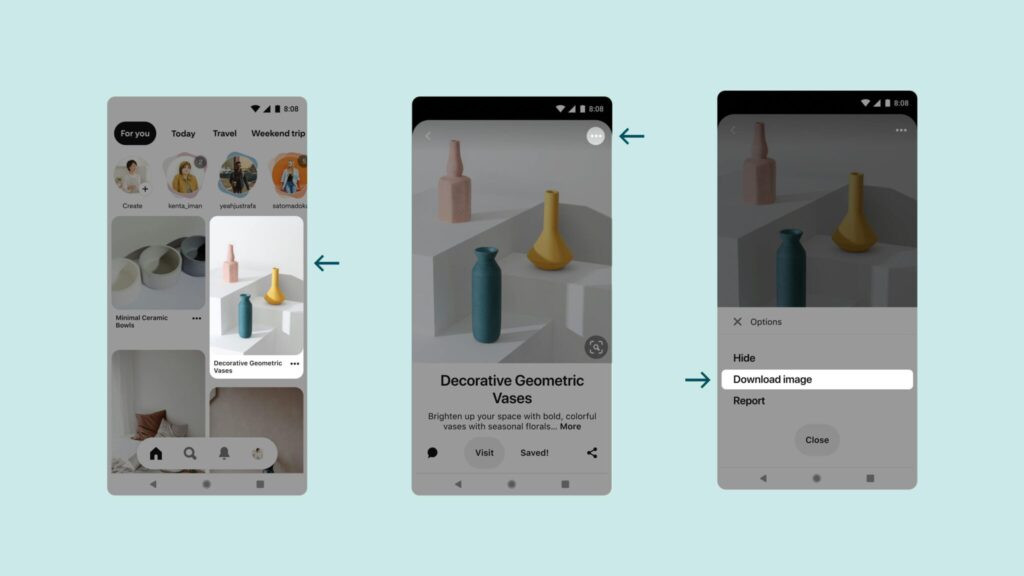
- Tap to Enlarge: Select the pin containing the image you wish to save. This will open the pin in an expanded view.
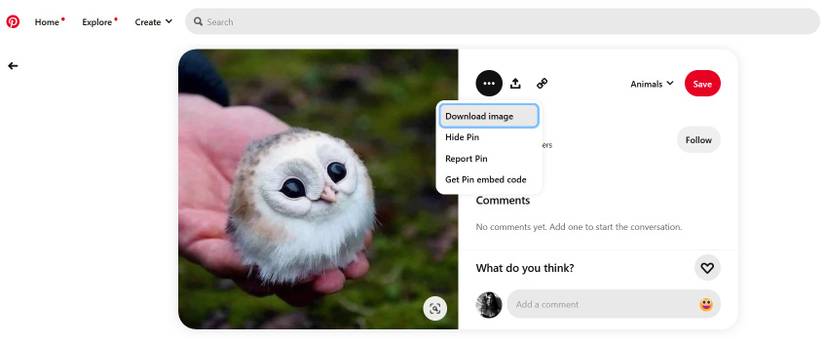
- Locate the Options Menu: Look for the three dots icon (•••) usually located at the top or bottom right corner of the enlarged pin.
- Select “Download Image”: Tap the three dots to open the options menu. From the available options, choose “Download Image“. This will automatically save the image to your device’s camera roll or gallery.
- Confirmation: A notification usually appears confirming that the image has been saved. You can then find the photo within your device’s photo gallery or camera roll.
By following these steps, you can easily save images from Pinterest directly to your camera roll, enabling offline access and creative usage.
Save Pinterest Images Without Downloading: Understanding Pinterest’s Save Feature
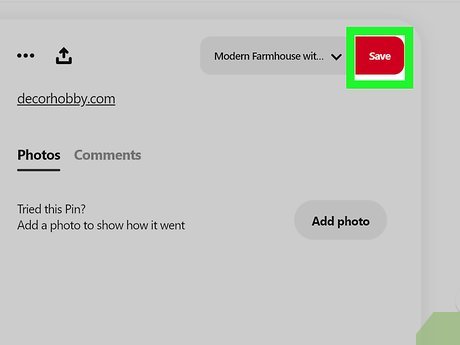
Instead of directly downloading photos from Pinterest, understanding and utilizing Pinterest’s save feature provides a streamlined and organized way to curate your favorite content. This approach to how to save Pinterest photos to camera roll offers a convenient method for users to manage inspiring ideas, product recommendations, and creative projects directly within the Pinterest platform. Pinterest’s save feature not only streamlines the process, but it also respects the content creator’s original source and copyright.
The core function of the save feature revolves around creating and organizing Boards. When you “save” an image, you’re essentially pinning it to a specific board you’ve created, categorized by themes like “Home Decor,” “Recipes,” or “Fashion Inspiration.” These boards act as virtual mood boards, allowing you to group similar ideas together for easy access and future reference. Furthermore, this action doesn’t store the image directly on your device but rather saves a link to the original Pin on Pinterest’s servers.
Here’s how the save feature enhances your Pinterest experience:
- Organization: Boards allow you to categorize and manage your saved Pins effectively.
- Inspiration: Quickly access your saved ideas for projects, purchases, or creative inspiration.
- Respect for Content Creators: The save function links back to the original source, giving credit where it’s due and driving traffic to the creator’s website or profile.
- Space Saving: Avoid cluttering your device’s storage with numerous downloaded images.
- Discover More: Pinterest’s algorithm learns from your saved Pins and suggests related content you might find interesting.
Therefore, by using the Pinterest Save Feature, you maintain an organized and inspiring collection of ideas without needing to download them directly to your device.
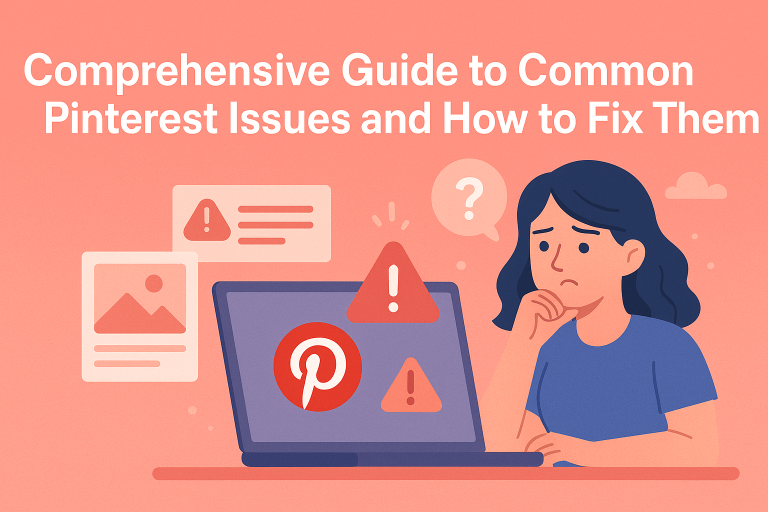
Troubleshooting: Why Can’t I Save Pictures from Pinterest to My Gallery?
Encountering difficulties when trying to save pictures from Pinterest to your gallery is a common frustration, and understanding the potential reasons behind this issue is key to resolving it. Several factors can prevent you from successfully downloading Pinterest images to your device’s camera roll, ranging from simple permission settings to more complex issues with app functionality or even copyright restrictions. This section will guide you through common troubleshooting steps to identify and address the reasons preventing you from saving your favorite Pins.
One primary reason you might be unable to save images from Pinterest to your gallery is insufficient permission granted to the Pinterest app. On both iOS and Android devices, applications need explicit permission to access your device’s storage. To resolve this, navigate to your device’s settings, locate the Pinterest app, and ensure that storage permissions are enabled. Without this permission, the Pinterest app simply cannot write the downloaded images to your gallery, leading to the impression that the save function is not working.
Another common cause is related to network connectivity. A weak or unstable internet connection can interrupt the downloading process, leading to incomplete or failed saves. Check your Wi-Fi or mobile data signal strength. Try switching between Wi-Fi and mobile data to see if the issue persists. Additionally, large image files may take longer to download, so patience is key, especially on slower connections. Consider closing other bandwidth-intensive applications during the download process to ensure a stable connection for Pinterest.
Finally, the issue might stem from the Pinterest app itself. Outdated app versions can sometimes contain bugs that interfere with the save functionality. Ensure you have the latest version of the Pinterest app installed from the App Store (iOS) or Google Play Store (Android). Clearing the app’s cache can also resolve temporary glitches that might be preventing image saves. To clear the cache, go to your device’s settings, find the Pinterest app, and select the option to clear cache. If the problem continues after these steps, consider uninstalling and reinstalling the app to ensure a clean installation free of corrupted files.

Third-Party Apps and Websites for Saving Pinterest Photos: A Safe Approach
While Pinterest offers a built-in save feature, many users explore third-party apps and websites as alternative solutions for downloading images directly to their device’s gallery; this section will guide you toward utilizing such resources in a safe approach while considering options for how to save Pinterest photos to camera roll. These external tools provide convenient methods for saving Pinterest photos, but it’s crucial to prioritize safety and security to avoid potential risks. Therefore, it is vital to understand the guidelines for third-party app usage.
Navigating the landscape of third-party Pinterest downloaders requires a cautious approach to mitigate security risks. Many apps and websites promise easy Pinterest photo saving, but not all are created equal. Before using any third-party tool, consider these factors:
- Reputation and Reviews: Look for apps or websites with positive reviews and a strong reputation for reliability and safety. Check user feedback on app stores or independent review sites.
- Permissions and Access: Be wary of apps that request excessive permissions beyond what is necessary for downloading images. Avoid those that ask for access to your contacts, location, or other sensitive information.
- Website Security: When using a website, ensure it has a valid SSL certificate (HTTPS in the address bar) to encrypt your data and protect against eavesdropping.
- Terms of Service and Privacy Policy: Read the terms of service and privacy policy of the app or website to understand how your data will be used and protected.
- Malware Scanning: Scan downloaded files with a reputable antivirus program to check for malware or other malicious software.
To ensure a safe experience when using third-party apps and websites for saving Pinterest photos, consider AI Powered Pin Video Downloader which helps users download Pinterest photos and videos quickly and easily on our website (https://pinvideodownloader.net). This way, you can enjoy the benefits of downloading content without compromising your device’s security. These tools are designed to be user-friendly and safe, but always exercise caution and prioritize your online safety.
Understanding Pinterest’s Copyright and Usage Rights: A Guide to Responsible Saving
Understanding Pinterest’s copyright and usage rights is crucial before you save Pinterest photos to your camera roll, ensuring you’re using images responsibly and legally. This section will guide you through the intricacies of Pinterest’s policies, helping you navigate the platform’s rules regarding image usage and sharing. Failing to respect copyright can lead to serious legal repercussions, emphasizing the need for this understanding.
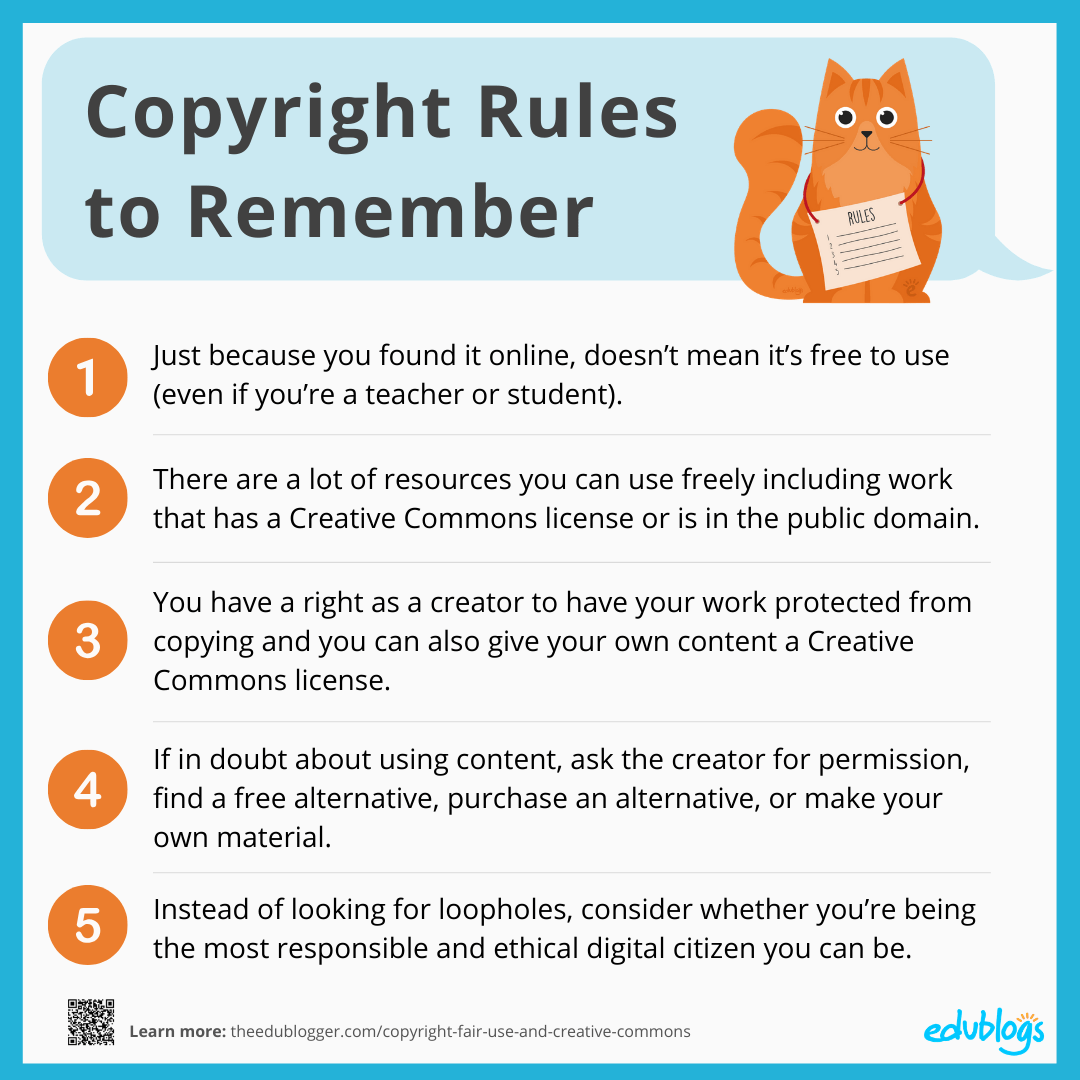
When browsing Pinterest and considering saving images, it’s essential to remember that most content is protected by copyright. Copyright law grants creators exclusive rights over their work, including the right to control how it is copied, distributed, and displayed. While Pinterest allows users to save (or “pin”) images for personal inspiration, this doesn’t automatically grant permission to use those images for commercial purposes or in ways that infringe upon the copyright holder’s rights. Therefore, always assume an image is protected unless explicitly stated otherwise.
One key aspect to consider is the difference between personal use and commercial use. Personal use generally refers to using an image for your own enjoyment, such as creating a mood board or using it as wallpaper on your phone. Commercial use, on the other hand, involves using an image to promote a business, product, or service, or to generate revenue. Commercial use typically requires obtaining permission from the copyright holder, which can be a photographer, artist, or designer. Platforms like Pinterest, while facilitating image discovery, do not absolve users of their responsibility to respect intellectual property.
AI tự đánh giá và đưa ra số từ hợp lý là: 220
Managing and Organizing Your Saved Pinterest Photos on Your Camera Roll
Effectively managing your saved Pinterest photos on your camera roll is crucial for easy access and efficient organization, particularly when you save Pinterest photos to your camera roll frequently. This section provides actionable strategies to keep your collection tidy and readily available.
One simple yet effective method for organizing Pinterest photos is creating dedicated albums within your phone’s photo gallery.
- Create Albums: Designate specific albums for different categories of Pinterest saves (e.g., “Recipes,” “Home Decor,” “Fashion”).
- Regularly Sort: Schedule time each week or month to move new saves into their respective albums.
- Utilize Keywords: When naming albums, use relevant keywords that align with the content, like “DIY Home Projects” or “Vegan Dinner Recipes.”
Another way to maintain order is leveraging cloud storage services like Google Photos or iCloud Photos, which offer advanced organizational features. These platforms can automatically sort images based on various criteria, including date, location, and even visual content. Moreover, they provide a backup solution, ensuring your precious Pinterest finds are safe even if your device encounters issues. Consider using features like face grouping (if available) to automatically tag and categorize images containing specific people, streamlining the process further.
Deleting duplicate images is another key aspect of keeping your camera roll manageable. Regularly review your gallery and remove any duplicate Pinterest pictures that may have accumulated. Many apps are available on both iOS and Android that can automate this process, making it easier to find and delete duplicate photos. This helps free up storage space and reduces clutter, allowing you to quickly find the images you need.