How To Delete Pinterest Account: Permanently Close & Remove Your Profile
Is Pinterest no longer sparking joy? Learning how to delete your Pinterest account is a crucial step for managing your online presence and protecting your data in 2025. This comprehensive guide, designed for Blog readers seeking practical solutions, walks you through the entire account deletion process, covering everything from backing up your Pinterest data to understanding the implications of permanently closing your account. We’ll explore alternative options like deactivating your account and compare deletion vs. deactivation, ensuring you make the right choice. Finally, we provide step-by-step instructions on how to delete your Pinterest business account if applicable.
Quick Steps: How to Delete Your Pinterest Account Permanently (Desktop & Mobile)
Looking to permanently remove your presence from Pinterest? Deleting your Pinterest account is a straightforward process that can be completed on both desktop and mobile devices. This section provides you with quick, easy-to-follow steps to completely remove your profile, boards, and pins from the platform. We’ll cover both desktop and mobile methods so you can choose the one that’s most convenient for you.
Here’s how to delete your Pinterest account permanently:
Desktop:
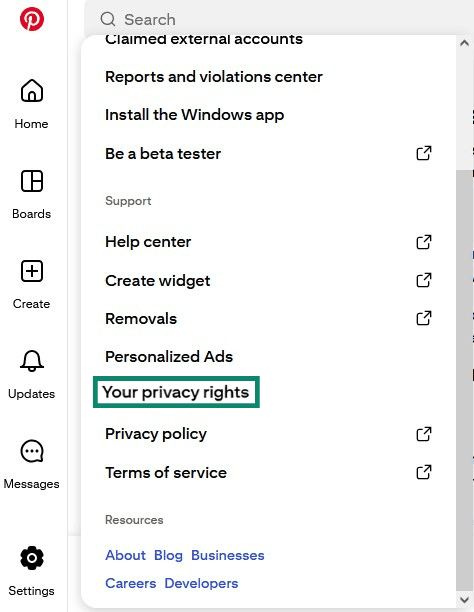
- Log in to your Pinterest account: Using your web browser, navigate to Pinterest.com and sign in with your credentials.
- Access Settings: Click the down arrow located in the top-right corner of the screen. Select “Settings” from the dropdown menu.
- Navigate to Account Management: In the left-hand navigation menu, click on “Account Management.”
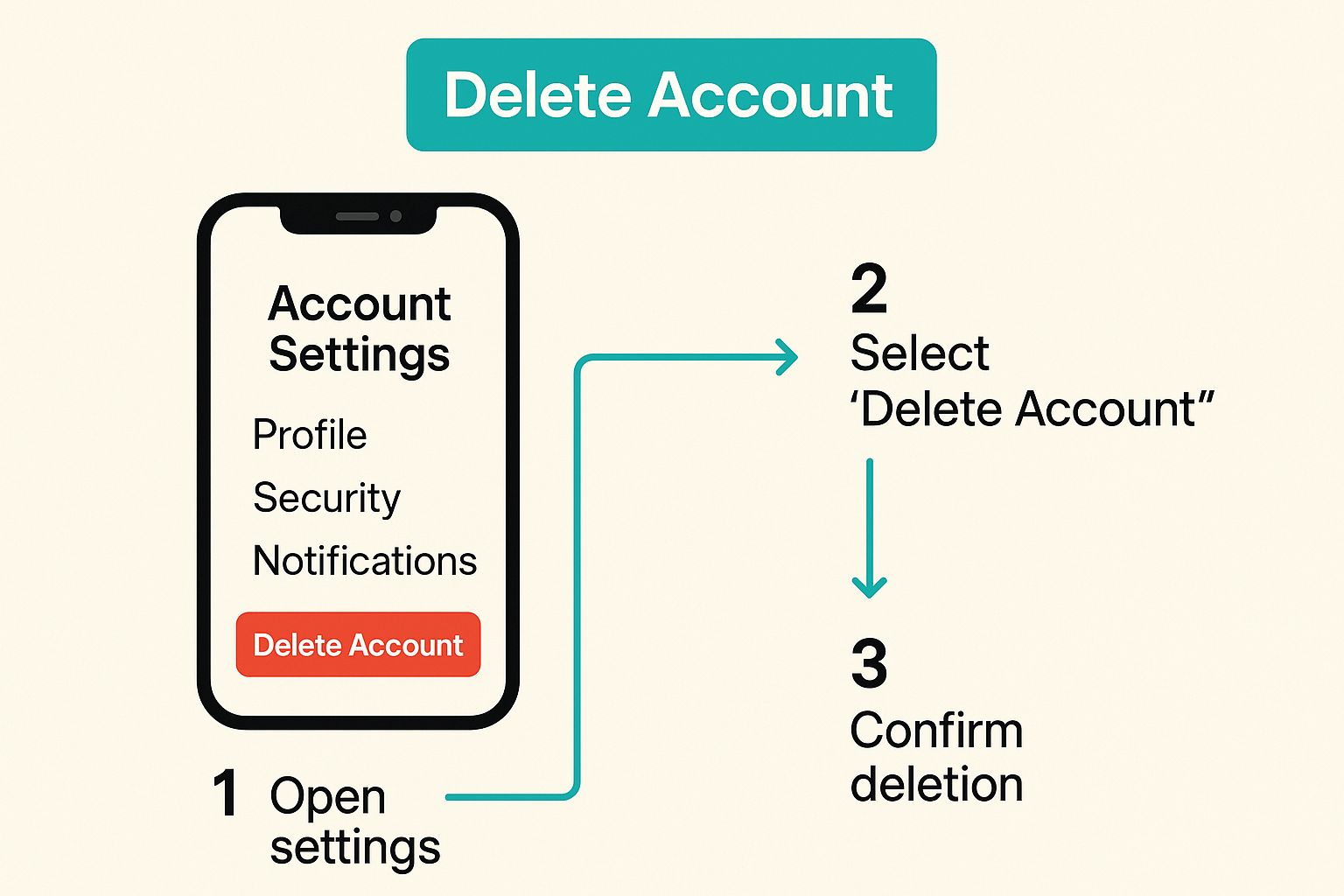
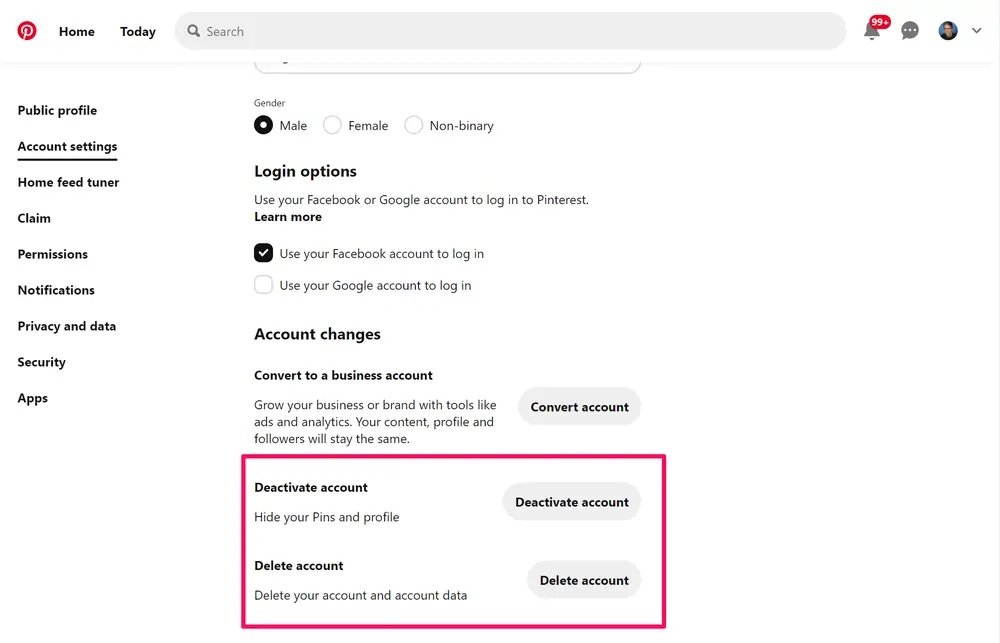
- Delete Account: Scroll down to the “Account Changes” section and click the red “Delete account” button.
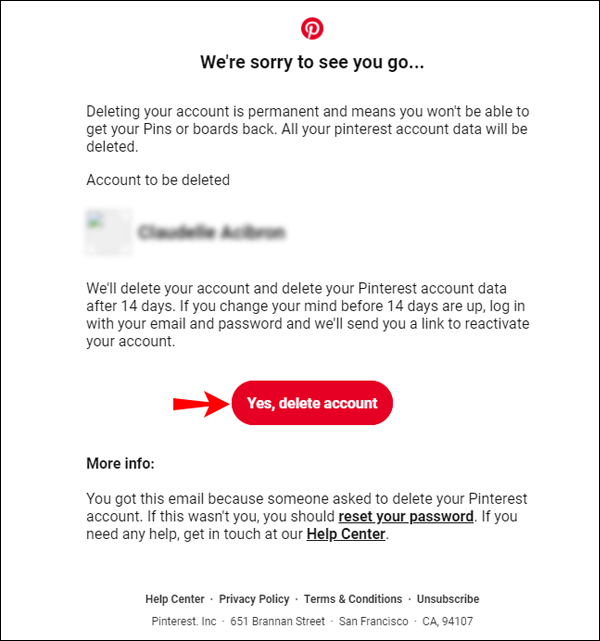
- Confirm Deletion: Pinterest will ask you to confirm your decision. A pop-up window will appear asking if you are sure you want to delete your account. Select “Yes, delete account.”
- Verification: Pinterest may require you to verify your identity by entering your password. Complete the process, and your account deletion request will be submitted.
- Wait 14 Days: Your account will be deactivated immediately, and the permanent deletion will occur after 14 days. If you change your mind, you can log in within this period to reactivate your account.
Mobile (iOS and Android):
- Open the Pinterest App: Launch the Pinterest app on your smartphone or tablet.
- Access your Profile: Tap your profile picture at the bottom-right corner of the screen.
- Open Settings: Tap the three dots (…) located in the top-right corner of your profile. Select “Settings.”
- Account Management: Scroll down and tap on “Account Management.”
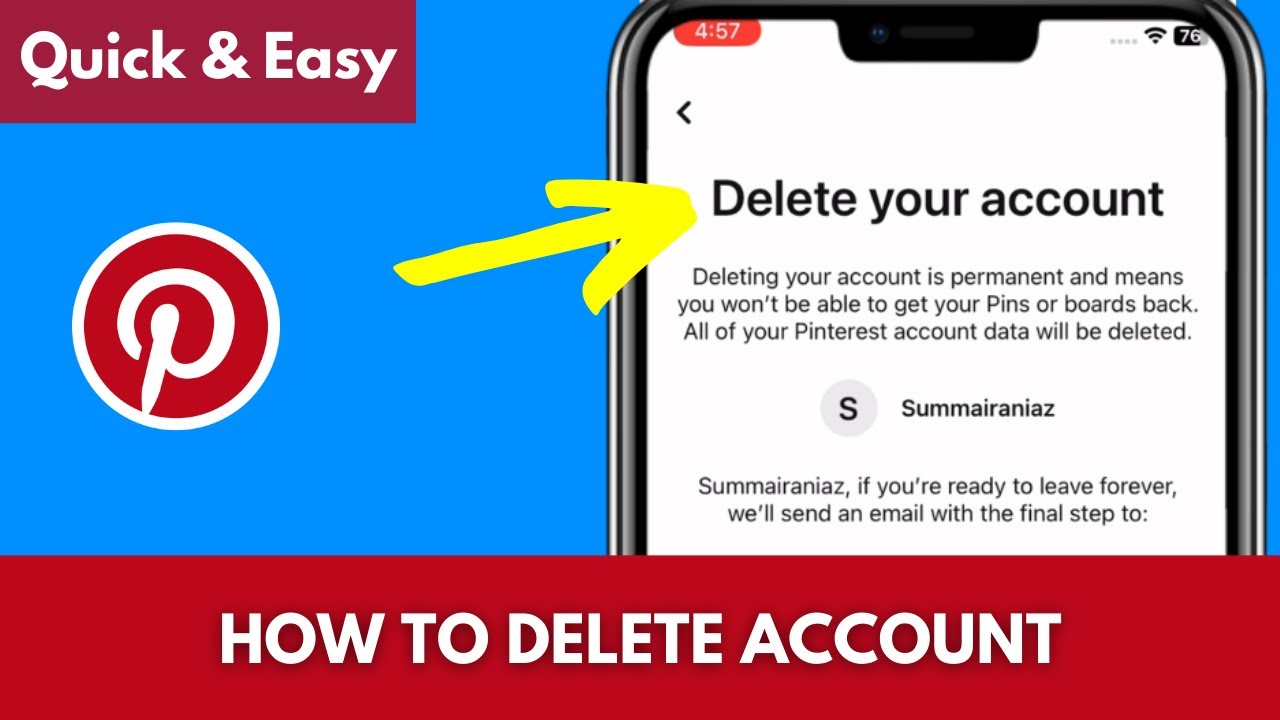
- Delete Account: Tap the red “Delete account” button.
- Continue via Browser: You’ll be redirected to your mobile browser to complete the deletion process.
- Confirm and Verify: Follow the same steps as the desktop version from step 5 onwards. Verify your identity, if prompted, and confirm the deletion request.
- 14-Day Deactivation Period: Similar to the desktop method, your account will be deactivated for 14 days before being permanently deleted. You can log back in to reactivate it within this time.
How to Deactivate Your Pinterest Account Temporarily
Deactivating your Pinterest account temporarily provides a convenient alternative to permanent deletion when you need a break from the platform. This option allows you to maintain your profile, boards, and pins, ensuring they are readily available when you decide to return, offering a less drastic approach compared to completely deleting your Pinterest account. Choosing to deactivate rather than delete your account means that all your saved content and profile information remains intact, awaiting your reactivation.
When you deactivate your Pinterest account, your profile and boards become invisible to other users. This means that your pins will no longer appear in search results or on other people’s feeds. It is essential to note that deactivation is a reversible process, and you can reactivate your account at any time by simply logging back in. This feature distinguishes deactivation from deletion, where all your data is permanently removed from Pinterest’s servers.
To deactivate your Pinterest account, follow these simple steps:
- Log in to your Pinterest account on a desktop or mobile browser.
- Click on the three dots icon (···) located at the top-right corner of your profile.
- Select “Settings.”
- Navigate to the “Account Settings” section.
- Scroll down and click on the “Deactivate account” button.
- Pinterest will ask you to confirm your decision; follow the on-screen prompts to complete the deactivation process.
After deactivating your account, Pinterest will immediately hide your profile and boards from public view. You will no longer receive emails or notifications from Pinterest. Reactivating your account is straightforward: just log back in with your username and password, and your account will be restored to its previous state. This provides a seamless way to step away from Pinterest without losing your carefully curated content.
Important Considerations Before You Delete Pinterest
Before you permanently delete your Pinterest account, it’s crucial to carefully consider the implications and prepare accordingly to avoid any regrets or loss of valuable data. Deleting your Pinterest account is an irreversible action, so taking the time to understand the consequences is essential for making an informed decision about permanently deleting a Pinterest account.
- Data Loss: One of the most important factors to consider is the complete and permanent loss of all your data. This includes all of your Pins, boards, followers, accounts you follow, and personal messages. If you have built a substantial collection of Pins or rely on Pinterest for inspiration, carefully weigh whether you are ready to part with this information. Remember that once your account is deleted, this data cannot be recovered.
- Missed Opportunities: Pinterest can be a valuable tool for marketing, networking, and discovering new interests. Think about how deleting your account could affect these opportunities. If you use Pinterest to promote your business or blog, consider the impact on your reach and engagement.
- Alternatives to Deletion: Before permanently deleting your account, explore the available alternatives. Pinterest offers the option to deactivate your account temporarily, which hides your profile and Pins from other users while still allowing you to reactivate it later. You can also archive specific boards to keep them private or edit your profile settings to limit your exposure. Consider whether these options might better suit your needs than complete deletion.
By carefully evaluating these considerations, you can make a well-informed decision about deleting your Pinterest account and avoid any potential regrets down the line.
Troubleshooting Common Pinterest Deletion Issues
Encountering problems deleting your Pinterest account is a common frustration, but fortunately, most issues have straightforward solutions. Whether you’re struggling with error messages, difficulty navigating the settings, or uncertainty about the process, understanding the common pitfalls can help you successfully remove your account.
Many Pinterest users face obstacles when trying to permanently delete their accounts, stemming from reasons such as forgotten passwords or confusing navigation. Specifically, forgetting your password prevents you from accessing the deletion settings, as Pinterest requires verification for security reasons. Additionally, if you’re accessing Pinterest through a mobile app, the deletion process can differ slightly from the desktop version, leading to confusion. Let’s look at the issues and troubleshooting tips:
- Forgotten Password: The most frequent obstacle is a forgotten password. Pinterest requires you to be logged in to delete your account, so if you can’t remember your password, use the “Forgot your password?” link on the login page. You’ll receive an email with instructions on how to reset it. Make sure to check your spam or junk folder if you don’t see the email in your inbox.
- Incorrect Login Credentials: Double-check that you’re entering the correct email address or username associated with your Pinterest account. It’s easy to make a typo, especially on mobile devices. If you have multiple email accounts, try logging in with each one to see if you can find the correct Pinterest account.
- Browser or App Issues: Sometimes, the problem isn’t with your account, but with the browser or app you’re using. Try clearing your browser’s cache and cookies or updating to the latest version of the Pinterest app. You can also try accessing Pinterest from a different browser or device to see if the issue persists.
- Account Suspension: If your account has been suspended for violating Pinterest’s Community Guidelines, you may not be able to delete it. In this case, you’ll need to contact Pinterest Support to resolve the suspension before proceeding with the deletion process.
- Confusing Navigation: Pinterest’s interface can sometimes be confusing, especially with updates. To ensure you’re following the correct steps, refer to the “Quick Steps: How to Delete Your Pinterest Account Permanently (Desktop & Mobile)” section of this article for detailed instructions.
- Mobile App Glitches: Mobile applications can sometimes experience glitches that prevent you from completing certain actions. Force quitting the Pinterest app and restarting it can often resolve these issues. If that doesn’t work, try uninstalling and reinstalling the app.
By systematically addressing these potential issues, you can overcome common obstacles and successfully delete your Pinterest account permanently. If you continue to experience difficulties, reaching out to Pinterest support is always a viable option.
Before you give up on Pinterest completely, consider these alternatives: Alternatives to Deleting Your Pinterest Account
Alternatives to Deleting Your Pinterest Account: What Else Can You Do?
Deleting your Pinterest account permanently might seem like the only option if you’re feeling overwhelmed or no longer find the platform useful. However, before taking such a drastic step, consider exploring alternative solutions that allow you to customize your experience and address your concerns without losing your saved pins and connections. These alternatives range from adjusting your notification settings to curating your boards and followers, offering a more tailored and manageable Pinterest experience.
- Adjust Your Notification Settings: One common reason for wanting to delete a Pinterest account is the constant stream of notifications. Instead of deleting, you can fine-tune your notification preferences. Within your account settings, you can choose to receive notifications only for specific activities, such as when someone saves your pin or follows you, or even turn off all notifications altogether. This can significantly reduce the noise and make your Pinterest experience less overwhelming.
- Unfollow Boards and Users: If your Pinterest feed is cluttered with content you’re no longer interested in, take some time to unfollow irrelevant boards and users. This will help curate your feed and ensure that you’re only seeing content that aligns with your current interests. You can easily unfollow boards and users from their profiles or directly from your home feed.
- Create Secret Boards: Feeling overwhelmed by sharing everything publicly? Secret boards are a great way to save pins privately, whether for personal projects, gift ideas, or anything else you want to keep to yourself. Only you and anyone you invite can see secret boards. This allows you to continue using Pinterest as a visual bookmarking tool without feeling pressured to share everything with your followers.
- Clean Up Your Existing Boards: Over time, your interests may change, and your Pinterest boards can become cluttered with irrelevant pins. Regularly reviewing and cleaning up your boards can make Pinterest feel fresh and more relevant. Delete old pins, reorganize boards, and create new boards that reflect your current interests.
- Take a Break with Deactivation: If you need a break from Pinterest but aren’t ready to commit to permanent deletion, consider deactivating your account temporarily. This option allows you to essentially hide your profile and boards from public view without losing your data. You can reactivate your account at any time simply by logging back in. It’s a perfect way to step back and reassess your relationship with the platform.
- Download Your Pinterest Data: Before making any decisions, it’s worth downloading your Pinterest data. This allows you to keep a copy of all your pins, boards, and other account information. Even if you ultimately choose to delete your account, you’ll still have a backup of your curated collections. Pinterest provides a straightforward way to request and download your data through your account settings.
These alternatives offer practical ways to manage your Pinterest account and customize your experience to better suit your needs, potentially eliminating the need for permanent deletion.
Not ready to delete your entire account? Explore options like managing your boards: Deleting Specific Pinterest Boards
What Happens to Your Data After You Delete Your Pinterest Account?
Deleting your Pinterest account is a permanent action, and it’s crucial to understand what happens to your data after you take this step. When you proceed with deleting your account, Pinterest initiates a process that involves the removal of your profile, boards, Pins, and all associated data from their platform. This means your profile will no longer be visible to other users, and you won’t be able to access your account again using your existing credentials.
After you delete your Pinterest account, your data undergoes a deletion process. Pinterest states that it starts the process immediately, but some data, including log data, may be retained for a certain period for security and legal reasons. Specifically, your profile and Pins are typically removed from Pinterest and search engines relatively quickly. However, keep in mind that cached versions of your profile or Pins may still appear in search results for a short time, depending on how frequently search engines update their indexes.
It’s also important to understand that while your personal data is removed, Pinterest may retain certain information in an anonymized or aggregated form. This type of data cannot be linked back to you personally and is used for internal purposes, such as improving the platform and understanding user trends. In addition, if you have interacted with other users’ content (e.g., leaving comments), that content may remain visible, but without attribution to your deleted account. Therefore, before you delete Pinterest, it is recommended to review your activity and remove any comments or content you no longer want associated with your name.