How To Delete Pinterest Board: Permanently Remove Boards On Your Account
Deleting a Pinterest board you no longer need is essential for keeping your profile organized and reflecting your current interests. This Blog post provides a straightforward guide on how to delete a Pinterest board permanently, covering different scenarios like deleting your own boards or those you collaborate on. We’ll break down the steps for both the Pinterest app and the desktop version, ensuring you can easily remove unwanted boards. Learn how to handle secret boards, understand the consequences of deleting a board, and explore alternative options like archiving to keep your pins safe.
Understanding Pinterest Boards and Deletion: A Comprehensive Guide
Pinterest boards serve as virtual collections, enabling users to curate and organize ideas, inspiration, and resources. This comprehensive guide will provide an in-depth understanding of Pinterest boards, exploring their functionality and guiding you through the process of deleting a Pinterest board when necessary.
Pinterest boards function as themed containers where users ‘pin’ images, videos, and links they discover online. Each board typically focuses on a specific topic, interest, or project, such as ‘Home Decor Ideas,’ ‘Summer Recipes,’ or ‘Travel Destinations’. Users can create multiple boards to categorize their pins effectively, turning Pinterest into a personalized visual discovery tool.
However, as interests evolve and priorities shift, the need to delete a Pinterest board may arise. This could be due to a change in personal taste, the completion of a project, or simply a desire to declutter your Pinterest profile. Understanding the implications of Pinterest board deletion, as well as alternative options like archiving, is crucial before taking irreversible action. This section will equip you with the foundational knowledge to make informed decisions about managing your Pinterest boards.
Considering a fresh start? Get the full scoop on what you need to know before you use Pinterest effectively, including understanding boards and deletion.
How to Delete a Pinterest Board: Step-by-Step Instructions
Deleting a Pinterest board is a straightforward process, whether you’re aiming to declutter your profile or remove outdated content; this section provides step-by-step instructions on how to delete a Pinterest board, ensuring a seamless experience. Understanding the procedure for board deletion allows users to effectively manage their Pinterest presence and curate their collections to align with their evolving interests. We will guide you through the process of removing unwanted boards from your Pinterest account, empowering you to maintain a clean and organized profile.
To permanently remove a Pinterest board, follow these steps:
- Navigate to the board you wish to delete: Log into your Pinterest account either through the website or the mobile app. Then, go to your profile and locate the specific board that you intend to remove.
- Access the board settings: Once you’ve opened the desired board, look for the “Edit” button (usually represented by a pencil icon or three dots). Click this button to access the settings menu for that particular board.
- Initiate the deletion process: Within the board settings, scroll down to the very bottom. You should find a red button labeled “Delete.” Clicking this button will start the process of permanently deleting your board.
- Confirm your decision: Pinterest will display a pop-up window asking you to confirm whether you are certain you want to delete the board. This is a crucial step to prevent accidental deletions. Carefully review the prompt and click the “Delete permanently” button to confirm your action. It’s important to note that this action is irreversible.
Once you have confirmed the deletion, the board and all of its Pins will be permanently removed from your profile. Remember that deleting a board is permanent, so consider archiving the board instead if you might want to access its content later, this can be done by changing the board’s visibility to secret. The AI-powered Pin Video Downloader can further assist in organizing content by letting you download videos before permanently deleting the boards.
Archiving vs. Deleting a Pinterest Board: Which is Right for You?
Choosing between archiving and deleting a Pinterest board is a common dilemma for users wanting to manage their Pinterest presence effectively. While both options help declutter your profile, they have distinct implications for accessibility and data retention. Understanding the nuances of each – especially regarding data recovery – can help you make the most suitable decision, aligning with your long-term Pinterest strategy.
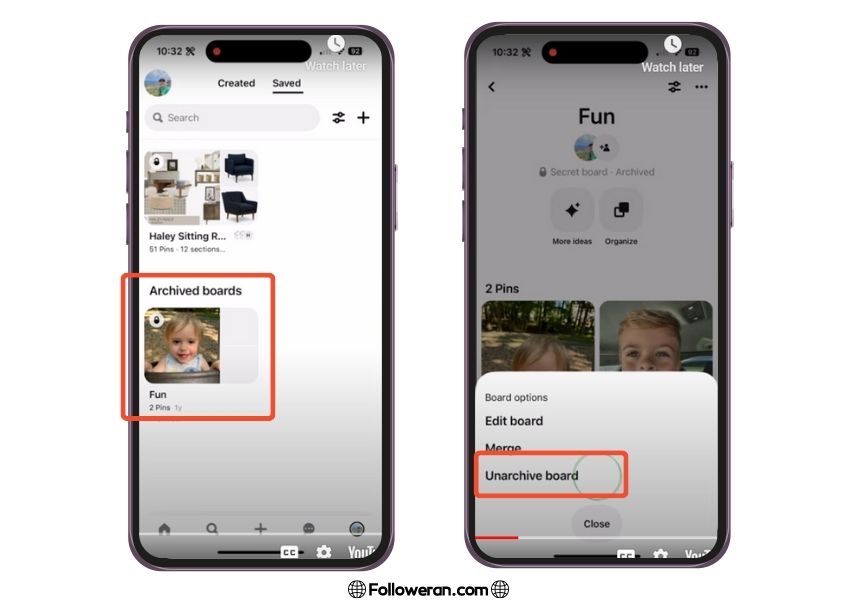
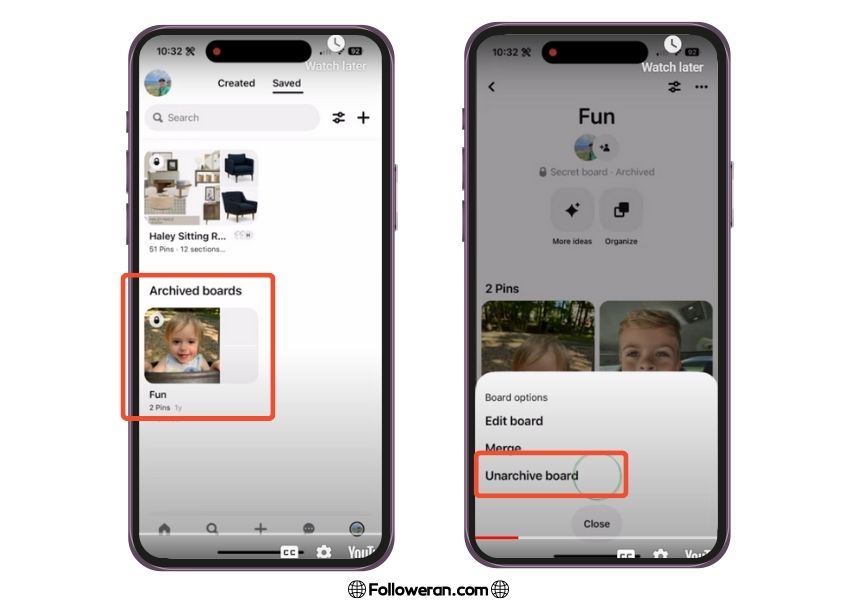
Archiving a Pinterest board essentially hides it from public view. Think of it as putting a board into storage: it’s no longer actively displayed, but the content remains intact. Archived boards are not visible to other users, nor do they appear on your public profile. This option offers a reversible solution if you’re unsure about permanently removing a board. The key benefit is the ability to restore the board later, bringing all its Pins back into circulation. This is particularly useful for seasonal content, projects that are temporarily on hold, or boards you simply want to declutter without losing their content.
Deleting a Pinterest board, on the other hand, is a permanent action. Once a board is deleted, all the Pins within it are gone forever. Deleting is the right choice when you are certain you no longer need the board or its content. Unlike archiving, there is generally no built-in Pinterest feature to recover deleted boards (we’ll explore potential recovery options later in this article). Deleting provides a clean slate and is useful when you’re revamping your Pinterest strategy or want to remove irrelevant or outdated content. Consider deleting a board when the theme is no longer aligned with your interests or the content is simply not performing well, affecting your overall Pinterest engagement.
Ultimately, the choice between archiving and deleting hinges on whether you anticipate needing the board’s content in the future. If there’s a chance you might want to revisit the board later, archiving is the safer bet. If you’re certain the board is no longer relevant and want to completely remove it, deleting is the appropriate action. Consider backing up important Pins using tools like Pin Video Downloader before deleting. This precautionary step ensures you retain valuable content, even if you decide to permanently remove the board from Pinterest.
How to Delete a Pinterest Board on Different Devices (Mobile & Desktop)
Deleting a Pinterest board is a straightforward process, but the exact steps can vary slightly depending on whether you’re using a mobile device or a desktop computer. This section provides clear, step-by-step instructions for how to delete Pinterest boards on both platforms, ensuring you can easily manage your Pinterest account regardless of your preferred device.
Deleting a Pinterest Board on Desktop:
Deleting boards on your desktop provides a comfortable and efficient experience. Follow these steps:
- Log in to your Pinterest account on your computer via their website Pinterest.com.
- Navigate to your profile: Click your profile icon, typically located in the top-right corner of the screen.
- Select the board you want to delete: Scroll through your boards or use the search bar to locate the specific board, then click on the board to open it.
- Edit the board settings: Click the “…” (ellipsis) icon located at the top of your board page to open the edit menu. Then click on “Edit board”.
- Delete the board: Scroll to the bottom of the board settings panel. Here you will see the option to “Delete”. Click on it.
- Confirm deletion: A pop-up window will appear, asking you to confirm the deletion. Select “Delete permanently” to proceed. Be sure before proceeding as this action cannot be undone.
Deleting a Pinterest Board on Mobile (iOS & Android):
Deleting Pinterest boards through the mobile application is quick and intuitive. Here’s how:
- Open the Pinterest app on your iOS or Android device and log in to your account.
- Go to your profile: Tap your profile icon at the bottom-right corner of the screen.
- Select the board to delete: Scroll through your boards and select the one you wish to remove.
- Edit the board: Tap the “…” (ellipsis) icon in the bottom-right corner of the board.
- Tap “Edit board.” This will bring up the board’s settings.
- Scroll down and tap “Delete.” You’ll find this option at the bottom of the settings menu.
- Confirm deletion: A confirmation message will appear. Tap “Delete” again to permanently remove the board. Remember, deleting a board is irreversible.

Recovering a Deleted Pinterest Board: Is it Possible?
Losing a carefully curated Pinterest board can be frustrating. The immediate question is: is recovering a deleted Pinterest board possible? While Pinterest doesn’t offer a direct “undelete” button, understanding the platform’s data retention policies and exploring available options might offer a glimmer of hope.
Unfortunately, Pinterest’s official stance is that deleted boards are permanently removed from their system. This means that once you delete a board, it’s generally gone for good, and Pinterest doesn’t provide a built-in mechanism to restore it. This policy is in place to ensure user privacy and data security.
However, before resigning yourself to the loss, there are a few avenues you can explore:
- Check your browser history: Sometimes, you can find the deleted board’s URL in your browsing history. If you find it, try accessing the link. It might not restore the board, but you might be able to salvage some of the Pins.
- Contact Pinterest Support: While the chances are slim, it’s worth contacting Pinterest support to explain your situation. In rare cases, if the deletion was very recent and due to a technical error on their end, they might be able to assist you.
- Third-party archiving tools: If you were using a third-party Pinterest archiving or backup tool, check if it has a recent backup of your boards.
Ultimately, the best strategy is prevention. Always back up your important Pinterest boards using third-party tools, or consider archiving them instead of deleting them if you want to keep them accessible in the future. While recovering a deleted board is often impossible, proactive measures can save you from potential data loss.
Managing and Organizing Your Pinterest Boards Effectively
Effectively managing and organizing your Pinterest boards is crucial for maximizing your presence and achieving your goals, whether you’re using it for personal inspiration or business promotion, especially if you are considering how to delete pinterest board to start fresh. A well-organized Pinterest account enhances user experience, improves content discoverability, and boosts overall engagement.
Organizing your boards doesn’t just make your profile look neat; it significantly impacts how users interact with your content. Here’s how to make the most of your Pinterest boards:
- Define Clear Themes: Each board should have a specific theme. For instance, instead of a general “Home Decor” board, consider breaking it down into “Living Room Decor,” “Kitchen Decor,” and “Bedroom Decor.” This specificity helps users find exactly what they’re looking for and improves the searchability of your pins.
- Strategic Board Titles and Descriptions: Use keywords in your board titles and descriptions that people are likely to search for. Consider what your target audience would type into the search bar. Write descriptive and engaging descriptions that accurately reflect the board’s content.
- Prioritize Your Best Boards: Arrange your boards in an order that highlights your most important or popular content. You can do this by placing your best boards at the top of your profile, ensuring they are the first things visitors see.
- Regularly Audit and Update: Periodically review your boards to remove outdated or irrelevant pins. Ensure that all links are still working and that the content remains relevant to the board’s theme. This keeps your boards fresh and engaging for your audience.
- Utilize Sections Within Boards: Pinterest allows you to create sections within boards to further categorize your pins. This is particularly useful for boards with a broad theme, helping you to create a more organized structure and improve the user experience.
- Collaborative Boards: Consider creating collaborative boards with other Pinterest users in your niche. This can help you reach a wider audience and diversify your content.
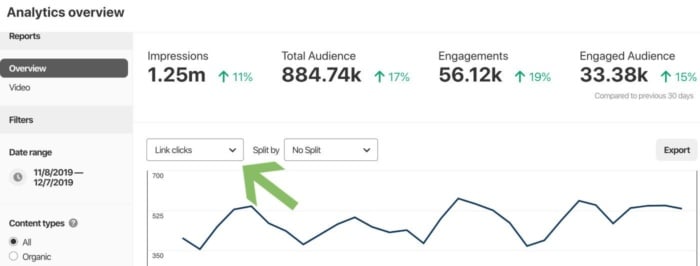
- Leverage Pinterest Analytics: Keep track of which boards are performing well and which ones aren’t. Use this data to refine your organizational strategy and focus on the boards that are driving the most engagement. Data from Pinterest analytics can inform decisions about content and board management, leading to increased visibility and audience growth. For example, Pin Video Downloader could analyze which types of boards generate the most traffic to its website and create more content for those categories.
By implementing these strategies, you can transform your Pinterest presence from cluttered to curated, enhancing engagement and ensuring your content resonates with your target audience.

Want to keep your boards tidy and focused? Learn more about effectively using Pinterest.
Alternatives to Deleting: Optimizing Your Pinterest Strategy
While deleting a Pinterest board might seem like the most straightforward solution, exploring alternatives to deleting can significantly boost your overall Pinterest strategy and engagement. Instead of permanently removing boards, consider options that allow you to repurpose content, maintain a clean aesthetic, and cater to your evolving audience – ultimately improving your visibility in Pinterest search and enhancing your brand presence, especially if you are using Pin Video Downloader.
Sometimes, a board isn’t performing as well as you’d hoped or no longer aligns with your current brand direction. Instead of deleting, you can archive the board. Archiving removes the board from public view while preserving all the Pins. This lets you retain valuable content for potential future use or reference without cluttering your active profile.
Here are several optimizing strategies to consider before taking the drastic step of how to delete Pinterest board:
- Archiving the Board: As mentioned above, archiving hides the board from public view but keeps the content accessible to you. This is perfect for seasonal content or boards that are no longer actively relevant.
- Merging Boards: Consolidate similar boards to create a stronger, more focused presence. For example, combine multiple “Summer Outfit Ideas” boards into one comprehensive board.
- Repurposing Content: Re-evaluate existing Pins and boards to see if they can be updated with fresh content or refocused to target a different audience. Update descriptions, keywords, and even visuals to breathe new life into older Pins.
- Making Boards Secret: Change the visibility of a board to “Secret” if you want to keep it private for personal inspiration or internal use. Secret boards are only visible to you and any collaborators you invite.
- Refreshing the Board’s Theme: Give a tired board a makeover by changing its title, description, and cover image to reflect a new theme or target audience. This can revitalize a board without deleting the existing content.
- Analyzing Performance: Before deleting, take time to analyze the board’s performance using Pinterest Analytics. Identify which Pins are performing well and which are not. This data can inform your decision about whether to repurpose content or simply archive the board.
- Collaborating with Others: Invite collaborators to contribute to the board, bringing fresh perspectives and content that could attract a new audience.
- Updating Keywords and Descriptions: Refresh board descriptions and pin descriptions, using new keywords to attract more relevant users. Pinterest algorithm updates frequently, so make sure to implement new relevant keywords.
Choosing the right alternative to board deletion can help you preserve valuable content, improve your overall Pinterest strategy, and maintain a cohesive brand presence. Remember to regularly review your boards and consider these options before permanently deleting them.
Pinterest Best Practices: Keeping Your Boards Relevant and Engaging
To maintain a thriving presence on Pinterest and avoid the need to how to delete Pinterest board, focus on Pinterest best practices that keep your boards relevant and engaging. Creating captivating boards that resonate with your target audience is key to attracting followers and driving traffic, making board deletion unnecessary. This involves understanding what your audience seeks and consistently delivering content that meets their interests.
To ensure your Pinterest boards remain valuable and attract the right audience, consider these strategies:
- Regularly Update Content: Stale boards lose appeal. Regularly add fresh, relevant Pins to keep your content current and attract new followers.
- Optimize Board Titles and Descriptions: Use keywords that your target audience is likely to search for. A well-optimized board is more likely to appear in search results.
- Curate High-Quality Pins: Only pin visually appealing and informative content. Low-quality Pins can detract from your board’s overall appeal.
- Categorize Boards Strategically: Organize your boards into clear, logical categories that make it easy for users to find what they’re looking for.
- Engage with Your Audience: Respond to comments and questions on your Pins and boards to build a community and show that you’re actively involved.
Leveraging tools like Pin Video Downloader can enhance your Pinterest strategy. By downloading high-quality videos and incorporating them into your boards, you can create a more dynamic and engaging experience for your audience, further reducing the need to think about how to delete Pinterest board and maximizing the impact of your Pinterest presence. For instance, if you have a board dedicated to DIY projects, downloading video tutorials and pinning them will add significant value for your followers.
Curious about making your Pinterest boards stand out? Discover best practices for keeping your boards relevant and attracting more followers.
Pinterest Privacy Settings: Controlling Who Sees Your Boards
Understanding Pinterest privacy settings is crucial for managing your online presence and controlling who views your content. Beyond simply understanding how to delete a Pinterest board, users should be aware of the options available to tailor their Pinterest experience to their comfort level and protect their privacy. This section will guide you through the various privacy settings Pinterest offers, empowering you to customize your account and boards to meet your specific needs.
Pinterest provides several options to manage the visibility of your boards, including the ability to make boards secret. Secret boards are only visible to you and any collaborators you invite. This feature is ideal for planning personal projects, saving ideas privately, or collaborating with a select group of people. To make a board secret, edit the board settings and toggle the “Secret” option to “On.” Conversely, to make a secret board public, simply toggle the option back to “Off.”
You can also control who can follow you and see your profile. By default, anyone can follow you on Pinterest. However, if you prefer a more private experience, you can block specific users. Blocking a user prevents them from following you, seeing your pins, or contacting you. To block someone, visit their profile, click the three dots menu, and select “Block.” Furthermore, Pinterest’s Business accounts offer more sophisticated analytics and advertising tools, but they generally do not have significantly different privacy settings compared to personal accounts. The core privacy controls remain consistent across account types.